Filex AI vs Adobe Scan: a scanner that files what it captures

Adobe Scan produces excellent PDFs with reliable OCR, then leaves the naming and filing to you. Filex AI reads the document it just scanned, renames it from the contents, sorts it into the right category, extracts the amounts and dates inside, and makes it searchable in plain English. Here is the full side by side.

Last reviewed

No credit card required · Free plan included

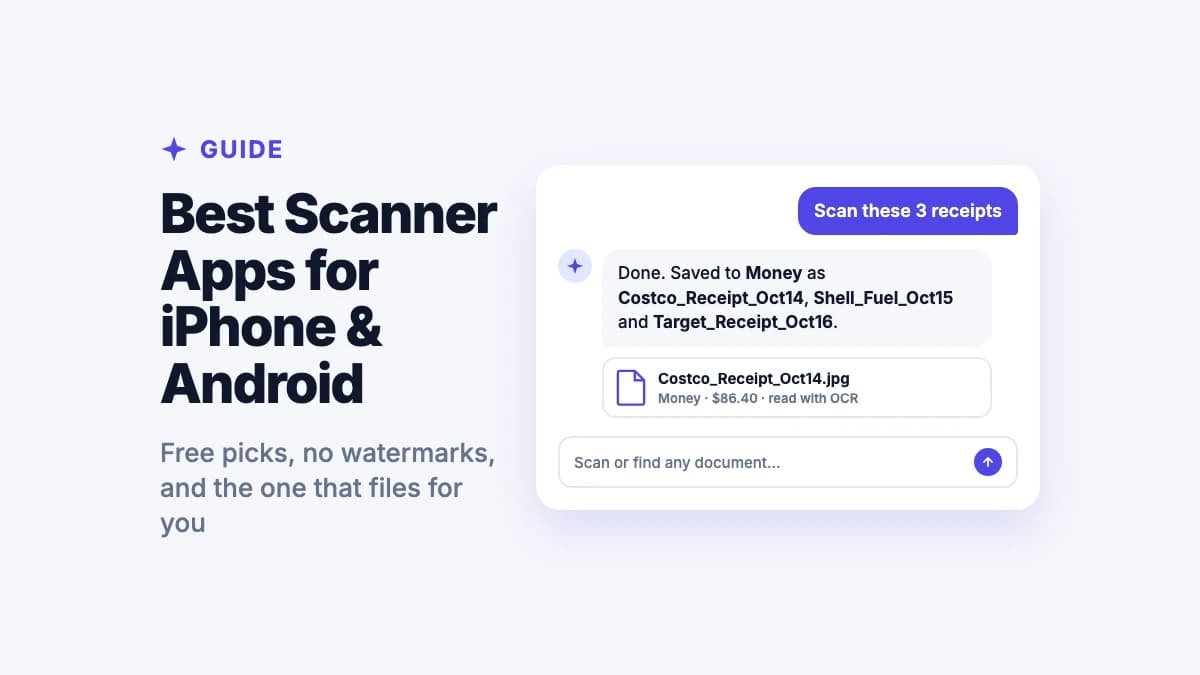
A real Filex AI workflow. Receipts and paperwork are captured, read, renamed, and filed into the right categories automatically. Adobe Scan would produce an equally clean PDF and stop at the save dialog.

The verdict

Which fits the way you work?

Adobe Scan is a PDF pipeline. Filex AI is a document system with capture built in. The right pick depends on whether your scans get edited or simply stored.

Choose Filex AI if…

  • 🏷️

    Your scans never get named properly

    Adobe Scan suggests a name from the first line of text, which helps until every bank letter starts with the same header. Filex AI names from what the document actually is.

  • 🔍

    You need a scan back months later

    Describe it in plain English and it returns. No folder to recall, no filename to guess, no opening PDFs one at a time.

  • 🧾

    You scan receipts and bills

    Vendor, total, due date, and category are extracted into structured fields, so paperwork becomes data you can filter rather than pages you reread.

  • 🔭

    One document belongs in several places

    A scanned flight receipt is travel, an expense, and a tax record at once. AI Lenses let it sit in all of them with no duplicate copies.

  • Renewal dates hide inside your paperwork

    Insurance renewals and policy expiries are detected inside scans and surfaced before they pass, instead of sitting unread in a PDF.

  • 🗂️

    You want one library for everything

    Emailed invoices, downloaded statements, spreadsheets, and screenshots are read and searched alongside your scans, not kept in a separate app.

Choose Adobe Scan if…

  • 📄

    You want the best PDF output available

    Adobe effectively defined the PDF format, and Adobe Scan produces clean, standards-compliant files with dependable OCR quality.

  • ✍️

    You edit and sign scans afterwards

    Scans flow directly into Acrobat for editing text, filling forms, combining files, and applying signatures.

  • 🎨

    You already pay for Creative Cloud

    If Adobe tools are part of your workflow, Scan slots in at no extra cost and shares the same account and cloud storage.

  • 🆓

    You want free scanning with no watermark

    Unlike some rivals, Adobe Scan does not brand your output on the free tier, which makes it a solid basic scanner on its own.

Head to head

Adobe Scan vs Filex AI, side by side

Both capture a clean page and run OCR. The separation begins the moment the file is saved.

Capability

Filex AI

Adobe Scan

Camera document scanning

Edge detection, perspective correction, and a clean PDF output

Excellent quality

OCR on every scan

Text inside the scan indexed and made searchable automatically

Reliable and free

Watermark-free output

Scans usable as-is without a promotional mark on the page

Automatic file organization

Scans sorted into meaningful categories without you creating folders

Runs on capture
You build folders

Automatic intelligent renaming

Named from what the document is, not from the first line of text

Type-aware naming
Suggests from first text line

Natural language search

Describe the document instead of recalling its filename

Keyword search

Entity extraction

Amounts, due dates, invoice numbers, and vendors pulled into structured fields

Filing by the date inside the document

A March receipt files under March even if scanned in April

Sorted by scan date

One file in multiple collections

A receipt can be travel, expenses, and tax at once with no duplicate copies

AI Lenses
One folder per scan

Date-based reminders from documents

Renewal and expiry dates detected inside scans and surfaced before they pass

PDF editing and signing

Edit text, fill forms, combine files, apply signatures

Via Acrobat

Handles files you did not scan

Emailed PDFs, downloads, spreadsheets, and screenshots in the same library

Any file type
PDF-centric

Works on a messy existing backlog

Point it at years of unsorted files and get structure back

Full support Partial or manual Not available

AI capabilities

How far the intelligence reaches

Adobe applies real machine learning to capture and text recognition. The question is whether it extends to understanding the document as a document.

AI featureFilex AIAdobe Scan
Edge detection and auto-cropFinds the page in the frame and straightens it
Very refined
OCR on scanned documentsText recovered from photographs and scans of paper
Industry standard
AI file renamingReads content and generates a descriptive filename automatically
From document type
From first text line
AI categorizationAssigns each scan to a meaningful category without predefined rules
Smart folders and collectionsGroups that populate themselves as new matching scans arrive
AI Lenses
Static folders
Natural language searchPlain-English description instead of keyword matching
Document understandingIdentifies what a document actually is, not just the words on it
Type + entities
Detects receipts and cards
Entity extraction into fieldsAmounts, dates, vendors, and reference numbers become structured data
Duplicate handlingDetects near-identical copies of the same document
Content-aware
Date-based remindersSurfaces renewals and expiries found inside documents

File types

Filex AI vs Adobe Scan: what each one takes in

Adobe Scan is built around producing PDFs from paper. Filex AI treats scans as one input among many and reads them all the same way.

File typeWhat Filex AI extractsFilex AIAdobe Scan
Scanned paper documentsLetters, forms, statements captured with a cameraOCR applied, then classified, renamed, and filed by content
Core strength
ReceiptsTill receipts, order confirmations, expense slipsVendor, total, date, and category pulled into structured fields
Detected, not extracted
ID documentsPassports, licences, national IDsRecognised by type, with expiry dates surfaced before they lapse
ID card capture mode
CertificatesAcademic, professional, training certificatesInstitution, holder name, and year extracted and made searchable
ContractsAgreements, NDAs, leases, service termsParties, effective dates, and renewal dates extracted
Insurance documentsPolicies, premium receipts, renewal noticesProvider, policy number, and expiry date extracted with reminders
Emailed PDF documentsInvoices and statements that arrive already digitalRead, renamed, and filed alongside your scans in one library
Opens in Acrobat
ScreenshotsConfirmations, chats, WiFi passwords, error messagesOCR on every image so the text inside becomes fully searchable
Not a scanning use case
Word documentsDOCX contracts, letters, notesFull text with automatic categorization and renaming
Excel spreadsheetsXLSX budgets, trackers, ledgersCell content indexed and the sheet classified by purpose
CSV filesExports, transaction lists, data dumpsContents parsed and the file categorized by what the data represents
Photos of documentsPaperwork snapped quickly without opening a scanner appOCR plus vendor, amount, and date extraction, same as a formal scan
Import and re-crop

Devices

Capture on one device, retrieve on another

Scanning happens on a phone. Looking a document up usually happens later, often somewhere else entirely.

🤖

Android

Filex AI

Native app that scans, reads, names, and files the document in one action

Adobe Scan

Strong native scanning app with reliable OCR

Get it on Google Play
📱

iPhone & iPad

Filex AI

Native app with scanning, organization, natural language search, and Lenses

Adobe Scan

Native scanning app feeding into Acrobat

Download on the App Store
💻

Web

Filex AI

Full workspace in the browser for search, organizing, and managing Lenses

Adobe Scan

Acrobat web for viewing, editing, and signing PDFs

Open the web app
🧩

Chrome extension

Filex AI

Save files and pages straight from the browser into the same organized library

Adobe Scan

Acrobat extension for PDF viewing and conversion

Add the Chrome extension

One synced library across every device

Scans, emailed PDFs, spreadsheets, and screenshots all land in one synced library. Capture a receipt on Android and it is searchable from a laptop moments later, in the same query that covers documents you never scanned.
In depth

Filex AI vs Adobe Scan, in detail

Is Filex AI a good Adobe Scan alternative?

Yes, if the part you struggle with is finding scans again rather than producing them. Adobe Scan is a genuinely strong capture tool with dependable OCR, and it does not watermark free output, which puts it ahead of several rivals. What it produces is a searchable PDF that you then name and file yourself.

Filex AI carries the same document several steps further. It identifies what kind of document it is, names it accordingly, files it under a category, extracts the vendor, amounts, and dates into structured fields, and files it by the date printed on the page rather than the day you captured it. That last detail matters more than it sounds: a March receipt scanned in April belongs in March, and only one of these tools agrees.

It also covers ground Adobe Scan does not attempt. Emailed invoices, downloaded statements, spreadsheets, and screenshots enter the same library and answer the same queries, so paper and digital documents stop living in separate apps. AI Lenses let a single receipt sit in travel, expenses, and tax at once, and reminders surface renewal dates found inside your paperwork.

Where Adobe stays ahead is the PDF itself. If you edit scans, fill forms, combine files, or apply signatures, Acrobat is the deeper tool and Filex AI is not trying to replace it. Many people scan into Filex AI for everything they need to keep and reach for Acrobat on the occasions they need to change a document rather than store one.

  • Names from document type rather than the first line of text on the page
  • Files by the date printed inside the document, not the day you scanned it
  • One searchable library covering scans, emailed PDFs, spreadsheets, and screenshots
Searchable text is not the same as understanding

Adobe Scan runs OCR on everything it captures, and the quality is reliable. The resulting PDF holds a text layer, so you can search inside it. That is a real advantage over apps that reserve OCR for paying users, and it makes Adobe Scan a capable free scanner.

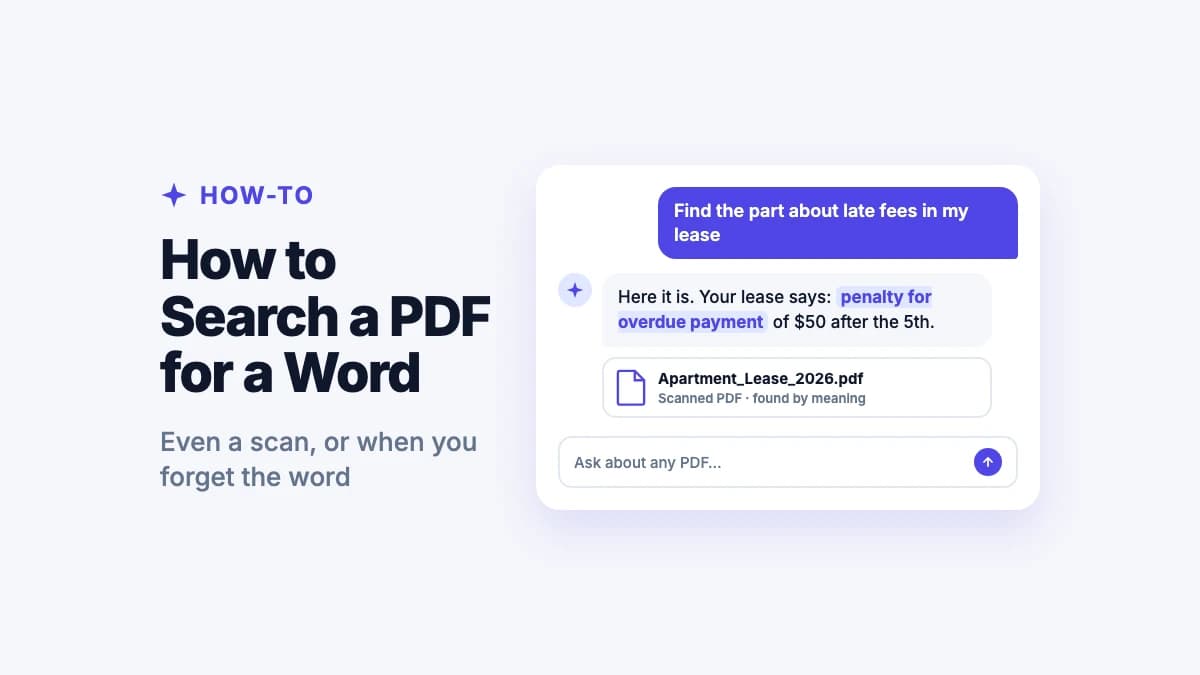
Searchable text still only answers questions phrased in the document's own words. Search "certificate" and you miss the one headed "Secondary School Leaving Examination". Search "laptop" and you miss the receipt that lists a model number and nothing else. Search "insurance" and you miss the insurer who writes "certificate of cover". OCR gives you the words on the page; it does not tell you what the page is.

Filex AI adds a classification step on top of the text. Each document is identified by type, so a certificate is a certificate whatever heading it carries, and a receipt is a receipt whether or not the word appears. Queries match on meaning rather than on wording you have to guess correctly.

The extracted fields extend this further. Because vendor, total, and dates are pulled into structured data, questions that no amount of text search can answer, such as which bills fall due this month, become straightforward.

  • OCR finds documents containing a word you already know
  • Classification finds documents of a type, whatever words they use
  • Extracted fields answer questions the text alone cannot

Why naming from the first line of text goes wrong

Adobe Scan tries to help by suggesting a filename drawn from the first recognisable text on the page. It is a sensible heuristic and it often produces something better than a timestamp.

It breaks down on exactly the documents you scan most. Bank letters begin with the bank's name, so every statement for three years suggests the same filename. Utility bills lead with the provider. Medical letters open with the practice address. The first line of a page is usually the sender, which is the least distinguishing thing about it once you have more than one.

You end up with folders full of near-identical names differing only by a number in brackets, which is a modest improvement on timestamps and still leaves you opening files to work out which is which.

Filex AI names from what the document is and when it applies, so an electricity bill becomes something like Electricity_Bill_April_2026 rather than the provider's name repeated for the twelfth time. The name distinguishes the document from its siblings, which is the entire purpose of a name.

The date the camera records is rarely the date that matters

Every scanner timestamps a document with the moment you photographed it. That is fine for a photo album and wrong for paperwork, because almost everything you scan already carries its own date.

Receipts show it most clearly. You buy something in March, the receipt sits in a wallet, and you scan it during an April clear-out. The scanner records April. Your expense claim and your tax year both say March, so sorting by scan date puts the document in the wrong month and filtering by March loses it entirely.

The same applies to bills scanned after they arrive, contracts scanned when a copy finally reaches you, and medical letters scanned weeks after an appointment. In every case the date that matters is printed on the page and the scanner ignores it.

Filex AI reads the date out of the document and files accordingly, so "show every receipt from March" returns the receipts from March regardless of when your camera saw them.

One scan, several legitimate homes

Adobe Scan organises into folders, which requires each document to have exactly one location. That model came from physical filing and stops working as soon as a document is relevant to more than one thing.

A scanned flight receipt from a work trip belongs with your trip documents, in reimbursable expenses, in your tax records, and in your travel history. A folder system makes you choose, then either duplicate the scan into the others, creating copies that fall out of step, or accept that three of those contexts will not contain it.

AI Lenses drop the requirement. A Lens is a collection described in natural language ("everything for my Japan trip", "documents I need for tax season", "medical records for my parents"), and documents join based on their contents. The receipt appears in every context that genuinely applies, as a single file, with nothing duplicated and nothing to maintain by hand.

  • Folders force one home per scan, chosen before you know how you will search
  • Duplicating scans creates copies that drift apart over time
  • Lenses let one scan appear wherever it legitimately belongs

Adobe Scan will find any document containing the word you searched for. It will not find the one you cannot remember the words to.

The short version of this comparison

Pricing

What you get without paying

Both offer a capable free tier, which is unusual in this category. They differ in what the free tier actually does with your documents.

Filex AI

Adobe Scan

Free tier

Spark plan with free credits, no card required

Free scanning with OCR, no watermark

Adobe Scan is one of the more generous free scanners available

OCR and text search

Included on every plan

Included on the free tier

Automatic AI organization

Included on every plan

Not offered at any tier

PDF editing and signing

Not the focus

Requires an Acrobat subscription

What you pay for

AI processing, organization, and search

Acrobat editing, exporting, and advanced PDF tools

Adobe Scan and Acrobat plan structures change periodically and vary by region, so check Adobe's current pricing page for exact terms. Filex AI pricing is shown in full below.

Simple, transparent pricing

Start free. Upgrade only when you need more power.

Free

Start organizing smarter with AI-powered file management.

$0
  • 20 files one time
  • AI content analysis & auto-sorting
  • Smart file renaming
  • Basic tagging
  • Cloud sync across devices
  • Export Organized Folders
Most Popular

Premium

Ideal for professionals who organise files, notes, and projects every day.

$2.99/month
  • 500 files organization per month
  • Advanced subject-based folders
  • OCR for images & scans
  • Handwritten notes analysis
  • Mobile app access
  • Share-to-organize from anywhere
  • Priority support
  • Export Organized Folders
Best Value

Premium (Yearly)

Save more with annual billing

$29/year
  • 6000 files organization per year
  • Advanced subject-based folders
  • OCR for images & scans
  • Handwritten notes analysis
  • Mobile app access
  • Share-to-organize from anywhere
  • Priority support
  • Export Organized Folders

Getting started

Bringing your Adobe Scan library across

Export the whole thing as it stands. Generic filenames and scan-date ordering are what the AI is built to correct.

  1. 01

    Export your existing scans

    Pull your PDFs out of Adobe Scan as they are. Do not rename anything or attempt to sort them into folders first.

  2. 02

    Upload the lot

    Drop in the whole export alongside emailed invoices, downloaded statements, and screenshots you also want searchable.

  3. 03

    Let the AI read everything

    Each scan is identified by type and has its vendor, amounts, and dates extracted into searchable fields, on top of the text OCR already found.

  4. 04

    Check the structure it built

    Scans come back renamed by document type and filed under the date printed on the page rather than the day you captured them.

  5. 05

    Keep Acrobat for editing

    Nothing forces you to give it up. Scan into Filex AI for everything you need to keep, and open Acrobat on the occasions you need to change a document rather than store it.

Guides & resources

More on scanning and filing paperwork

Guides on going paperless, searching scanned documents, and keeping a scan library usable over time.

AI Document Scanner: Scan and Organize Papers Automatically in 2026
AI & Technology7 min read

AI Document Scanner: Scan and Organize Papers Automatically in 2026

Traditional scanner apps just move the mess to your phone. Discover how Filex AI's AI document scanner reads, renames, and files every document automatically the moment you scan it.

May 11
8 Security & Privacy Risks of Letting AI Organize Your Screenshots
AI & Technology8 min read

8 Security & Privacy Risks of Letting AI Organize Your Screenshots

Before you let an AI app scan your camera roll, know the risks: cloud upload exposure, model-training reuse, metadata leaks, and more. Here's how to vet any screenshot organizer.

Jul 1
5 Essential Questions to Ask Before Choosing an AI File Organizer
AI Document Management11 min read

5 Essential Questions to Ask Before Choosing an AI File Organizer

Before you upload a single tax return or medical record to an AI file organizer, ask these five critical questions about data processing, privacy, accuracy, control, and semantic search.

Jun 28
6 Predictable Mistakes AI File Organizers Make (And How to Avoid Them)
AI Document Management9 min read

6 Predictable Mistakes AI File Organizers Make (And How to Avoid Them)

AI file organizers save hours of manual work, but they aren't perfect. Learn the 6 most common mistakes—wrong classification, hallucinated filenames, OCR failures, and more—and how to choose a tool that minimizes them.

Jun 28
Best Digital File Organizers in 2026: Google Drive, Dropbox, Hazel, and More Compared
AI & Technology18 min read

Best Digital File Organizers in 2026: Google Drive, Dropbox, Hazel, and More Compared

Looking for the best digital file organizer 2026? We compare top digital file organizers using AI, including Google Drive, Dropbox Dash, Hazel, Filex AI, and more.

Jun 26
Best ChatGPT Apps for Document Management in 2026: Q&A vs. True Organization
AI & Technology9 min read

Best ChatGPT Apps for Document Management in 2026: Q&A vs. True Organization

ChatGPT, ChatPDF, AskYourPDF, and NotebookLM are great at chatting with your files. Find out which ones can also organize them, and which can't.

Jun 26

Frequently asked questions

Everything you need to know about using Filex AI

Is Filex AI a good Adobe Scan alternative?

Yes, if your difficulty is retrieving scans rather than producing them. Adobe Scan captures excellent PDFs with reliable free OCR. Filex AI captures the same page and then identifies the document type, names it accordingly, files it into a category, extracts vendor, amounts, and dates into searchable fields, and files it by the date printed on the page. Adobe remains the stronger choice if you edit, sign, or combine PDFs afterwards through Acrobat.

Does Adobe Scan organize documents automatically?

Not really. Adobe Scan suggests a filename based on the first line of recognised text and saves into folders you create. It does not classify a document by type, extract the data inside it, or decide where it belongs. Filex AI performs those steps automatically at capture, so a scanned electricity bill is named, categorized, and indexed without any input from you.

Adobe Scan already has OCR, so why would I need Filex AI?

OCR makes the words on a page searchable, which only helps if you can guess the words. Searching "certificate" misses a document headed "Secondary School Leaving Examination", and searching "laptop" misses a receipt that lists only a model number. Filex AI classifies each document by type on top of the text, so it matches on what the document is, and extracts fields like vendor, total, and due date so it can answer questions text search cannot, such as which bills are due this month.

Why do my scans all end up with similar names?

Because Adobe Scan draws its suggested name from the first line of text, which on most documents is the sender. Every letter from your bank starts with the bank name, so three years of statements suggest nearly identical filenames. Filex AI names from what the document is and the period it covers, producing something like Electricity_Bill_April_2026 that distinguishes it from its siblings.

Why do my receipts end up filed under the wrong month?

Scanner apps record the date you photographed the document rather than the date printed on it. A March receipt scanned during an April clear-out gets filed under April, so filtering by March misses it. Filex AI extracts the date from inside the document, so receipts file under the month they actually belong to regardless of when you captured them.

Can Filex AI handle documents I did not scan?

Yes, and it is a meaningful difference. Emailed PDF invoices, downloaded statements, Word documents, spreadsheets, CSVs, and screenshots all enter the same library and are read the same way. Your paper and digital documents become searchable in a single query rather than living in separate apps.

Does Filex AI replace Acrobat?

No. Acrobat is a PDF editing and signing tool, and it is very good at that. Filex AI is a document organization and retrieval system with scanning built in. If you need to fill a form, edit text inside a PDF, combine files, or apply a signature, Acrobat remains the right tool. If you need to find a document you scanned last year, Filex AI is built for that.

Do I need to organize my existing scans before importing them?

No. Filex AI is built for exactly this backlog. Generic filenames and scan-date ordering are what the AI is designed to correct. Export your whole Adobe Scan library as it stands, upload it, and let the system read, classify, rename, and refile every document.

Is Filex AI free?

Yes, every account starts on the free Spark plan with credits to organize and sync files, and no payment details required. OCR and AI organization are included rather than reserved for a paid tier, and scans are never watermarked, so you can run a real batch of your own paperwork through it before deciding whether to upgrade.

Which devices does Filex AI work on?

Filex AI runs on Android, iPhone, iPad, the web, and as a Chrome extension, with one synced library across all of them. A receipt scanned on your phone is searchable from your laptop moments later with no manual transfer step.

Great scans deserve a filing system.

Capture the page and let Filex AI name it, sort it, and index it for you. Free to start, no watermarks, no credit card required.