You have the PDF open. The clause, the name or the account number is in there somewhere, and someone is waiting for it. You don't want to read 80 pages.
The quick answer: press Ctrl+F on Windows or Cmd+F on a Mac, type the word, and press Enter to jump from one match to the next. That works in Chrome, Edge, Adobe Acrobat Reader and Mac Preview. On a phone, look for the magnifying glass icon.
The better way: add your PDFs to Filex AI and search all of them at once, scans included, by typing what you remember, even if you've forgotten the exact word.
Below are the exact steps for each app, plus the three cases where Ctrl+F lets you down and Filex AI takes over: the word could be in any of 30 PDFs, the PDF is a scan, or you don't remember the exact word.
Shortcuts to search a PDF in every app
| Where your PDF is open | How to search it |
|---|---|
| Chrome or Edge (Windows) | Ctrl+F |
| Chrome or Safari (Mac) | Cmd+F |
| Adobe Acrobat Reader | Ctrl+F (Windows) or Cmd+F (Mac) |
| Preview (Mac) | Cmd+F, or the search box in the top-right corner |
| iPhone or iPad | Books, Safari or Acrobat: tap the magnifying glass |
| Android | Google Drive or Acrobat: tap the magnifying glass |
How to search one PDF for a word
On a computer (Chrome, Edge, Acrobat, Preview)
- Open the PDF.
- Press Ctrl+F (Windows) or Cmd+F (Mac). A search box appears.
- Type the word or phrase.
- Press Enter to jump to the next match, and Shift+Enter to go back.
Chrome and Edge show the number of matches ("3 of 12") next to the box. Acrobat Reader and Mac Preview also list the matches in a sidebar, so you can click straight to the right page.
On iPhone or iPad
- Books: tap Share, then Books. Tap the middle of the page, tap the magnifying glass, and type the word.
- Safari: with the PDF open, tap Share, choose Find on Page, and type the word.
- Adobe Acrobat Reader: open the PDF, tap the magnifying glass at the top, and type the word.
For finding the PDF itself on your phone, see how to find any file on iPhone with AI.
On Android
- Google Drive: open the PDF in Drive, tap the magnifying glass at the top, and type the word. Use the arrows to move between matches.
- Adobe Acrobat Reader: open the PDF, tap the magnifying glass, and type the word.
Tips for long PDFs
- Search a phrase, not a single word. "Security deposit" finds the right spot faster than "deposit".
- Use whole words and match case when you can. Acrobat's search options let you turn these on, so "art" doesn't match "start".
- Try a different form of the word. Searching "terminat" finds terminate, termination and terminated.
- Search for numbers. Account numbers, dates and amounts are often easier to find than words.
How to search many PDFs at once
Ctrl+F only searches the PDF you have open. If the word could be in any of dozens of files, the easiest answer is Filex AI: add your PDFs once (from your computer, phone, Google Drive or iCloud Drive) and every search covers all of them, scans included, on any device. It also works as a PDF finder when you're looking for the file itself and remember only what it was about.
If you'd rather stay with what's on your computer, there are three built-in options. They only search one computer and need the exact word.
Adobe Acrobat Reader (Windows and Mac). Press Shift+Ctrl+F (Windows) or Shift+Cmd+F (Mac) to open Advanced Search. Choose "All PDF Documents in", pick the folder, and type the word. Acrobat lists every match in every PDF in that folder.
Spotlight on a Mac. Press Cmd+Space and type the phrase. Spotlight searches the text inside PDFs as well as their names. In Finder, you can search a folder and choose to match "Contents" instead of "Name".
Windows search. Windows can search inside PDFs if their contents are indexed. Open Indexing Options, choose Advanced, then File Types, find .pdf, and select "Index Properties and File Contents". If PDFs still don't show up, you may need a PDF filter (Adobe Acrobat Reader installs one). After that, type content: followed by your word in File Explorer's search box.
All three have the same limit: they only search PDFs on that computer, they still need the exact word, and most of them skip scans. If your PDFs are spread across a laptop, a phone and email attachments, Filex AI keeps them in one place you can search from anywhere. See how AI document search works.
Why your PDF search says "0 results"
If you can see the word on the page but search can't find it, the PDF is almost certainly a scan.
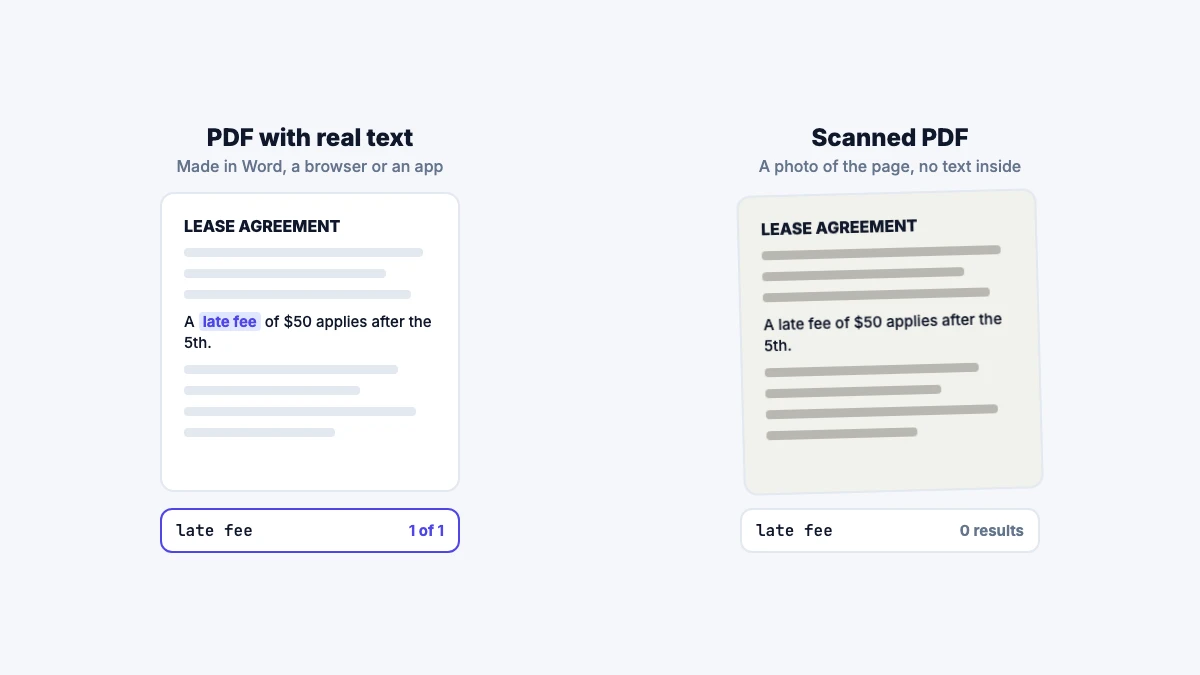
A PDF saved from Word, a website or an app contains real text, so search can find it. A scanned PDF, or a photo of a document saved as a PDF, is just a picture of the page. You can read the words, but to your computer there is no text to search.
A quick test: try to select a single word with your cursor. If you can't select it, or the whole page highlights like a picture, it's a scan.
Other reasons search fails:
- The PDF is password-protected or has copying turned off.
- You're searching the wrong file. Check the file name at the top.
- The text is in a form field or a comment, which some apps don't search.
- Spelling or spacing is different from what you typed (a line break in the middle of a phrase can stop a match).
Search every PDF at once, scans included
Filex AI reads all your PDFs, including scans and photos of documents, so one search covers them all. Your first 10 files are free.
Try Filex AI FreeHow to make a scanned PDF searchable
To search a scan, the text has to be read off the page first. This is called OCR (optical character recognition).
- Filex AI (recommended, free to start): add the scan and Filex reads the text automatically, along with your other PDFs, photos and screenshots. The scan becomes searchable inside Filex straight away, so you don't have to convert each file yourself. You can try it free on your own files.
- Adobe Acrobat Pro (paid): open the PDF, choose Scan & OCR, then Recognize Text. Acrobat adds an invisible text layer, and after that Ctrl+F works.
- Google Drive (free): upload the PDF, right-click it, and choose Open with, then Google Docs. Drive reads the text into a new document you can search. It works best on short, clear scans; long PDFs may only be read partly.
When you don't remember the exact word
This is the case Ctrl+F can never solve. You remember what the passage was about, but not the words it used.
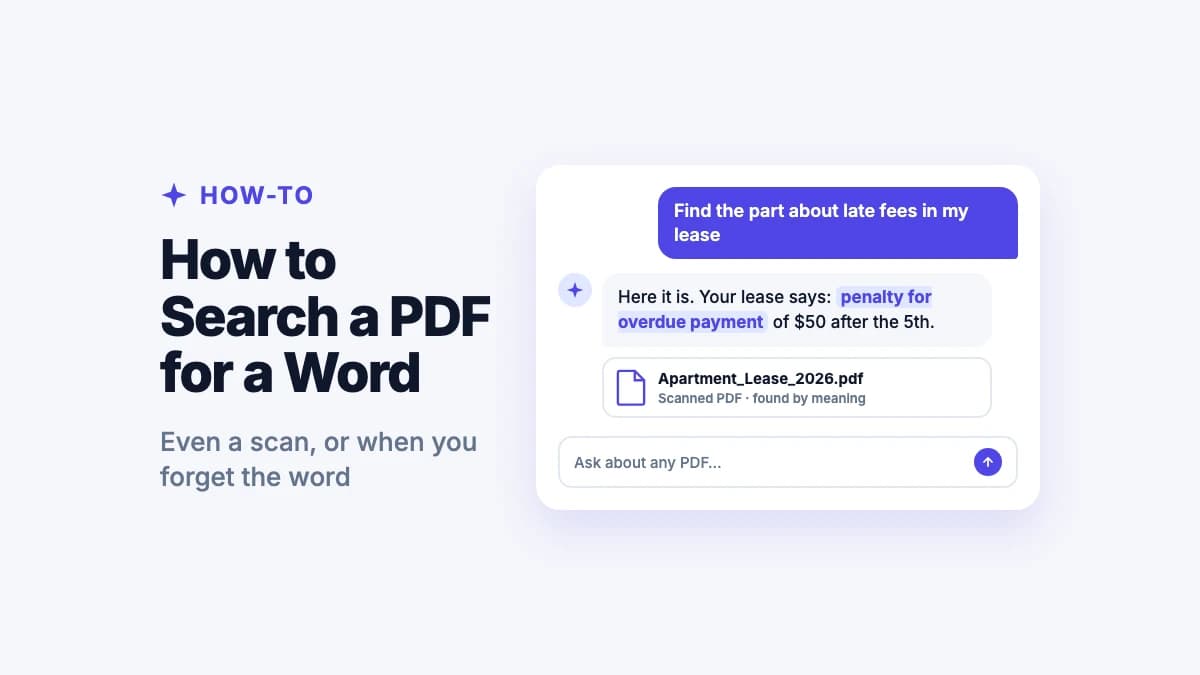
You search your lease for "late fee". The lease says "penalty for overdue payment". Ctrl+F shows 0 results, and you start reading from page one.
An AI search tool works differently. It searches by meaning, not exact letters. Filex AI reads every PDF you add, scans included, and understands what each passage is about. So you can type what you remember, in your own words, and get the right passage back:
| You type | Filex finds the passage that says |
|---|---|
| late fee | "penalty for overdue payment" |
| who pays for repairs | the maintenance and repairs clause |
| how much notice to move out | "tenant shall give sixty (60) days' written notice" |
| warranty length | "covered for a period of 24 months from purchase" |
| refund rules | the cancellation and returns section |
You can also ask a question in plain words, such as "what's the late fee in my lease?", and Filex answers from your PDF and shows you which file it came from. It searches across all your PDFs at once, so you don't need to know which file the answer is in.
For more on how this works with PDFs specifically, see our guide to AI PDF search.
Forgot the exact word? Search by meaning
Type "late fee" and Filex finds the clause that says "penalty for overdue payment". Try it on your own PDFs for free.
Search inside your files freeWhich method should you use?
- One PDF open, you know the word: Ctrl+F or Cmd+F is fine for a quick look.
- Many PDFs: Filex AI. One search covers all of them, on any device.
- A scan that shows 0 results: Filex AI reads scans automatically, so they're searchable as soon as you add them.
- You don't remember the exact word: Filex AI. It's the only option here that searches by meaning.
For anything beyond a single PDF, Filex AI is the answer.
Search your PDFs from your phone
Use Filex AI on iPhone and Android to find any contract, statement or manual by what it says.
Download Filex AIFind it in seconds next time
Ctrl+F is fine for a quick look inside one PDF. For everything else, the 40 contracts, the scanned lease, the clause you remember only vaguely, use Filex AI. It reads all your PDFs and understands what you mean. Add your most important PDFs to Filex AI, type what you remember, and the right passage comes up, even when you've forgotten the word. Your first 10 files are free.