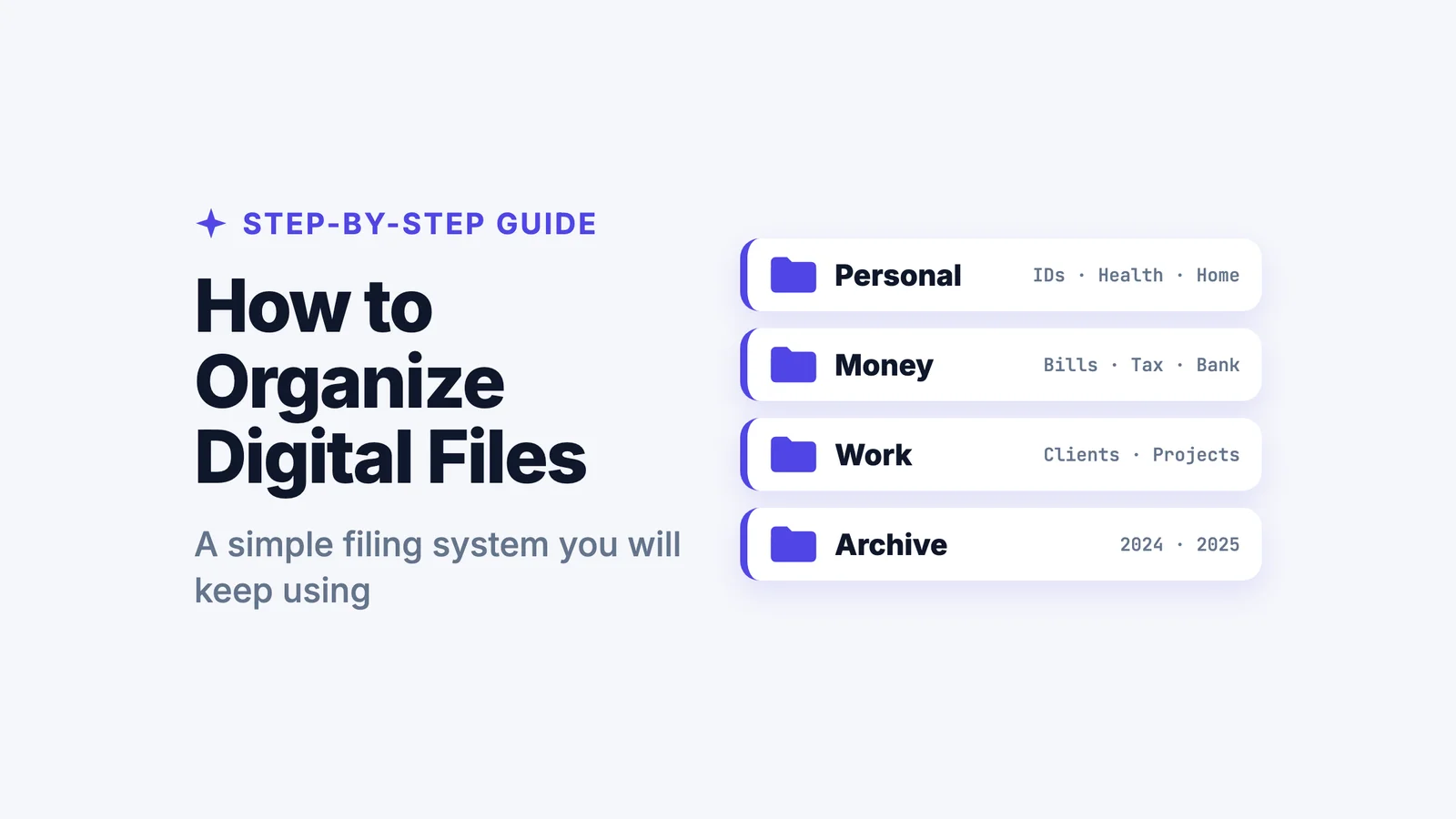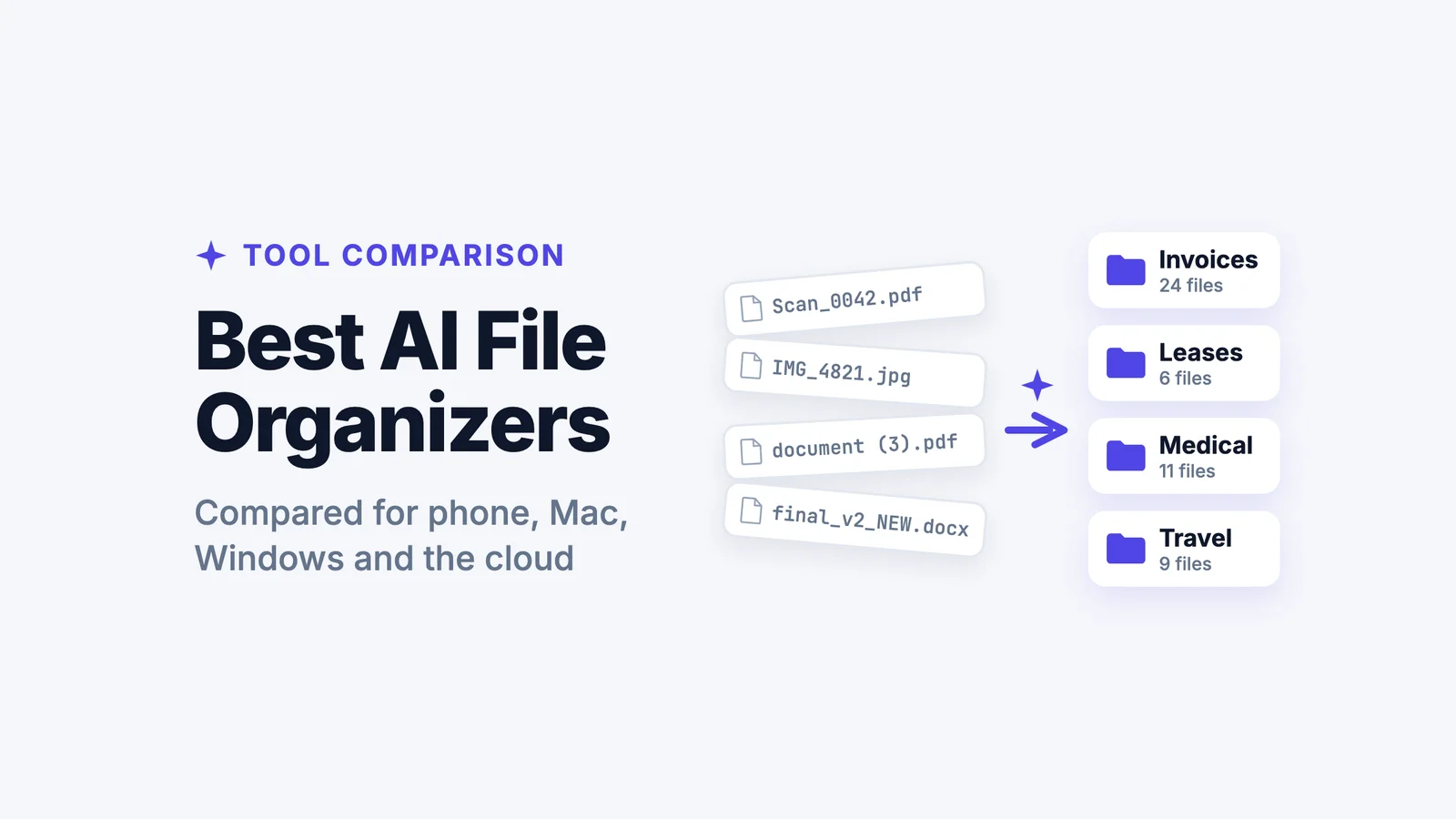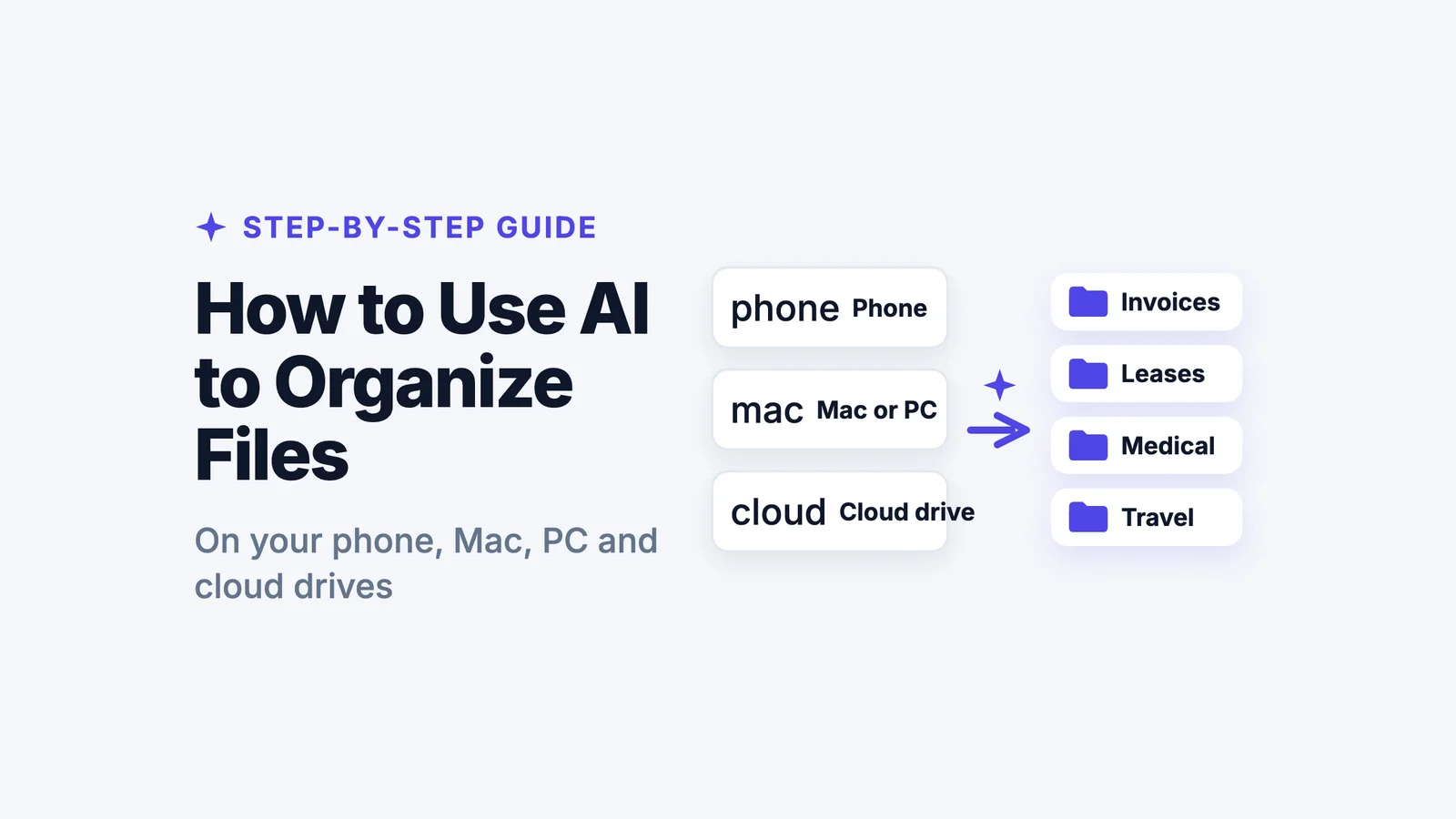
To use AI to organize files, put the messy files in front of an AI file organizer, let it read what is inside each one, and let it sort them into folders and give them clear names. You don't build folders first. The AI works out that one PDF is an invoice and another is a lease, even when both are called Scan_0042.pdf. Then you search by describing a file instead of remembering its name.
Below are the steps for your phone, a Mac or Windows PC, and cloud drives. The free options come first, and the mistakes to watch for come at the end.
Let AI sort your files now
Open Filex AI in your browser, add a messy folder and get it back sorted and named. Your first 10 files are free.
Try Filex AI FreeWhy your folders stopped working
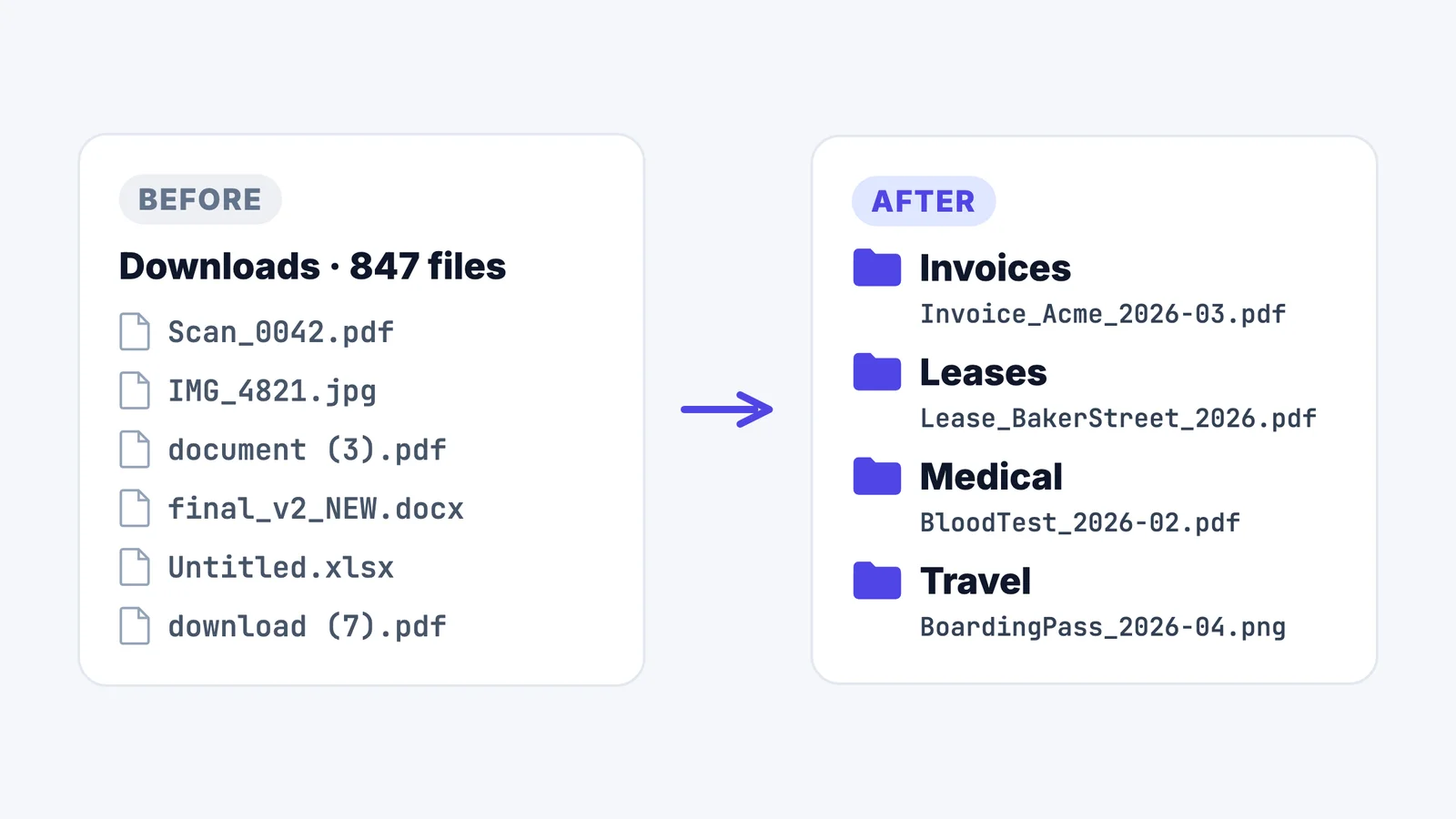
Almost everyone's folder system works for a few weeks. Then a file doesn't obviously fit anywhere, or you're in a hurry, so it lands in Downloads. Months later Downloads has 800 files, half of them named document (3).pdf, and the folders you made are out of date.
That isn't a discipline problem. Manual folders only work if you apply the same rule every single time, for years. AI organizing takes that job away: it reads each file, so the thousandth file gets filed as carefully as the first.
What AI file organization actually does
An AI file organizer does four things a normal file manager can't:
- Reads the content, including text inside scans and photos (this is called OCR).
- Works out what each file is: an invoice, a contract, a lab report, a boarding pass.
- Sorts and renames it, so
IMG_4821.jpgbecomesLease_BakerStreet_2026-03.pdfin a Leases folder. - Lets you search by meaning, such as "the lease for Baker Street", not by filename.
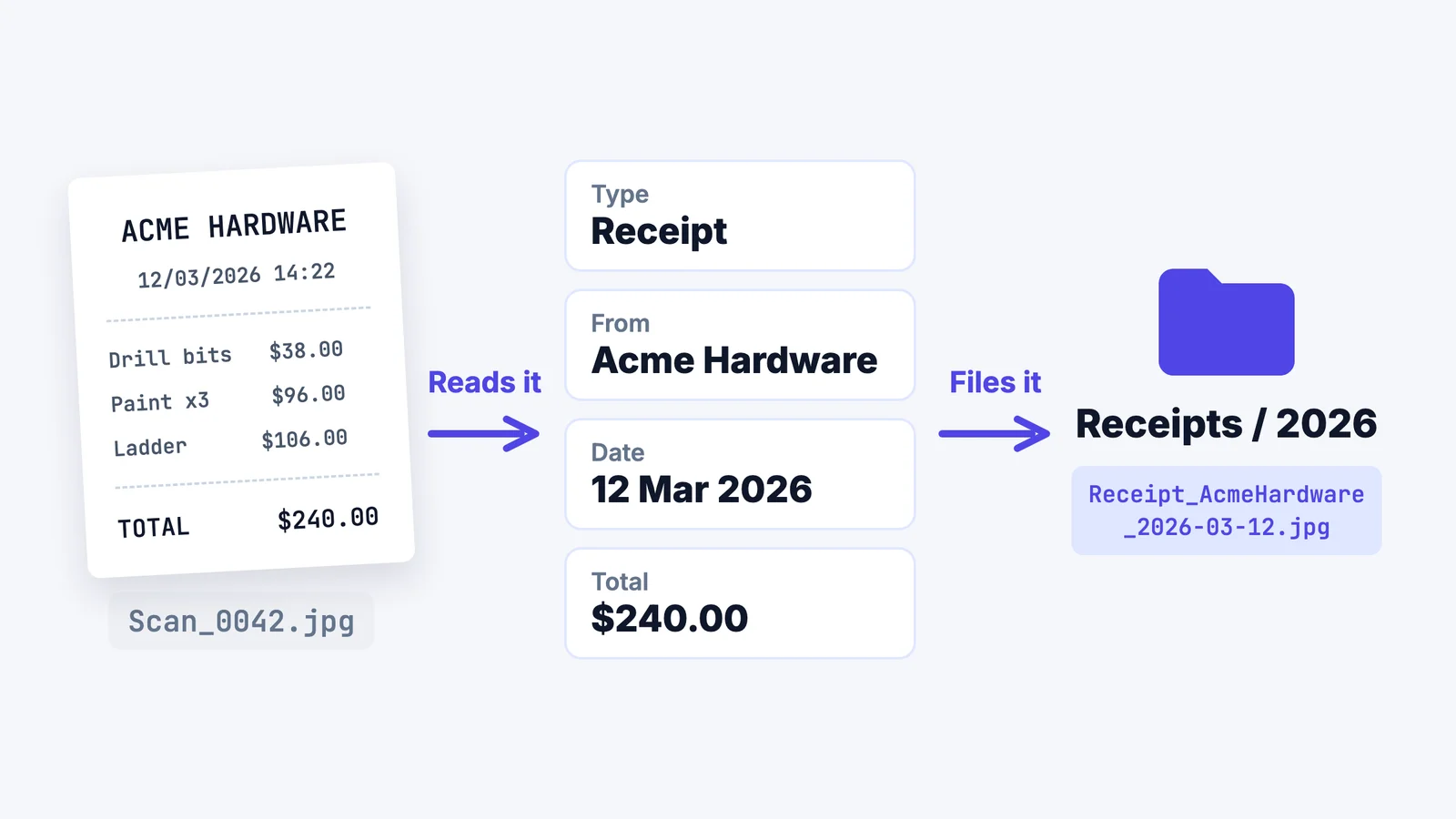
A rules tool (like Hazel on a Mac) moves files by rules you write, such as "PDFs with invoice in the name go here". That works when your files are predictable. AI is for the pile that isn't. If you would rather build a filing system by hand first, see how to organize digital files.
Sort a messy folder in your browser
Drag in files from your Mac, PC or phone. Filex AI reads each one and sorts it into the right folder.
Try the free AI file organizerStep 1: Pick one messy place to start
Don't try to fix everything at once. Pick the folder that annoys you most:
- Downloads on your computer
- The camera roll full of photographed documents and screenshots
- An old backup or USB drive you have been avoiding
Starting small lets you check the AI's work before you trust it with everything.
Step 2: Let AI sort the files
How you do this depends on where your files are.
On Android
Free option: Files by Google can clean up junk and group files by type (images, documents, audio). It doesn't read documents or sort them by topic.
With AI: install Filex AI from Google Play and tap Organize. It finds the PDFs, photos, spreadsheets and documents on your phone, reads each one, and sorts them into folders inside Filex with clear names. Your originals stay where they are. More detail in how to organise files automatically on Android.
On iPhone and iPad
Free option: the Files app lets you make folders, add tags and search by filename, and Spotlight can find some text inside PDFs. It won't sort anything for you.
With AI: install Filex AI from the App Store and choose the folders or iCloud Drive locations you want organized. iPhone only lets apps see what you pick, so you choose what gets sorted. More in how to organize iPhone files automatically.
On a Mac or Windows PC
Free option: Finder smart folders (Mac) and Windows search can gather files by type or date, but they don't know what a file is about.
With AI, in your browser:
- Open the free AI file organizer. Nothing to install.
- Select or drag in a batch of files from Downloads or wherever the mess lives.
- Filex AI reads each file, sorts it into a folder and renames it.
- Download the sorted folders as a zip, or keep them in Filex and search them later.
Filex AI doesn't move or rename anything on your computer itself. It works on the copies you upload. If you want files rearranged in place on your disk, a desktop app is a better fit; see the best AI file organizers for Mac and Windows options.
In Google Drive, Dropbox or OneDrive
- Google Drive: Gemini's Organize my files suggests folders for loose files, but only on some paid Google Workspace business plans.
- Dropbox and OneDrive: their AI features help you search and summarize, but they don't sort files into folders for you.
- With Filex AI: import files straight from Google Drive in the web app, or download them from any drive and drag them in.
Step 3: Tell the AI how you like things organized
The best results come when you give the AI a sentence of direction. In Filex AI you can type instructions in plain English, for example:
- "Group invoices by year and vendor."
- "Make a folder for each property address, with Leases and Repairs inside."
- "Organize my notes by course, with lectures and assignments separate."
- "Rename files as ClientName_DocumentType_Date."
You decide the system; the AI does the dragging and renaming.
Step 4: Keep it sorted
The mess comes back if new files keep landing in Downloads. Send new files to the same place:
- Share files to Filex AI from your phone's share sheet, or scan paper with the in-app scanner.
- Drag new downloads into the web app once a week.
- Every new file gets read and filed the same way as the first batch.
After that, finding a file means typing what you remember, like "the warranty for the fridge", and opening it.
Common mistakes AI organizers make (and how to avoid them)
AI is good at this, not perfect. These are the problems worth checking for:
- Wrong category. A bank letter about a mortgage may land in Mortgage or Bank. Fix: give a one-line instruction for the categories you care about, and spot-check the first batch.
- Made-up details in filenames. An AI may guess a date or name that isn't in the document. Fix: use a tool that builds names only from what it can read, and look at a few renamed files.
- Bad scans. Blurry or crooked photos give poor text. Fix: scan in good light, flat, with the whole page in frame.
- Duplicates. The same invoice downloaded three times becomes three files. Fix: pick a tool that flags duplicates rather than deleting them on its own.
- Too many folders. Some tools create a folder for every small topic. Fix: tell the AI the few top-level folders you want.
- Privacy. Some tools send file content to third-party AI services. Fix: check where files are processed and whether they are used to train AI models.
Is it safe to let AI read my files?
It can be, if the tool is clear about it. Look for encryption in transit and at rest, a plain statement that your files are not used to train AI models, and a way to delete everything. Filex AI encrypts files, keeps them private to your account, never sells them, and never uses them to train AI models. Tools that run entirely on your computer, such as AI File Sorter with a local model, keep files off the internet, at the cost of setup and speed.
Find any file by describing it
Filex AI renames and files every document, then finds it when you ask. On the web, iPhone and Android.
Try Filex AI FreeStart with one folder today
You don't need a weekend. Pick the messiest folder, drag it into an AI file organizer, and see what comes back. The free AI file organizer sorts your first 10 files free, and if you want to understand the category first, read what an AI file manager does.