To organize digital files, gather them into one place, sort them into a few top-level folders, give every file a name that starts with the date, and spend ten minutes a week filing new things. Back everything up automatically. That simple system works on any computer and phone, with no new software.
Below is the whole system step by step, with a folder template you can copy and a naming pattern that makes any file findable months later.
Skip the sorting by hand
Add your files and Filex AI puts each one in the right folder with a clear name. Your first 10 files are free.
Try Filex AI FreeWhy digital files get messy
Saving a file takes one click. Filing it takes a decision, and most days there is no time for the decision. So files land in Downloads, on the desktop, in email, in a cloud drive and on your phone, each with a name that made sense only at the moment you saved it.
None of that means you are disorganized. It means you have never had a system that is quicker to follow than to ignore. The one below is designed to be exactly that.
Short on time? Start with this one-hour plan
If the whole mess feels too big, don't tackle it all. Set a timer for one hour and do only this:
- 10 minutes: create the four top-level folders from Step 2 in your main cloud drive.
- 20 minutes: empty your desktop into them. Anything you can't place goes into Archive.
- 20 minutes: go through this month's Downloads and do the same.
- 10 minutes: rename the five files you use most, using the pattern from Step 3.
That's it for day one. You now have a system and a habit, and the backlog can shrink a little each week.
Step 1: Gather your files in one place
Start by listing everywhere your files live. For most people it is:
- Computer: Desktop, Downloads and Documents
- Phone: photos of documents, screenshots, downloads
- Email: attachments you never saved
- Cloud drives: Google Drive, Dropbox, OneDrive or iCloud
- Old devices: USB sticks, external drives, an old laptop
Pick one home for everything, usually your main cloud drive, so files are backed up and reachable from every device. Move files there in batches. Delete obvious duplicates as you go, and if you're not sure about something, drop it in an Archive folder instead of deleting it.
Files on your phone, in chats and in email
Phones hide more documents than people expect:
- Camera roll: photos of receipts, letters and whiteboards. Move the ones you need into your folders and delete the rest from Photos.
- WhatsApp and other chat apps: documents and photos people send you are saved in the app's own media folder. Save the ones that matter into your system, and turn off automatic saving of chat media to your photo library to stop the clutter coming back.
- Email attachments: search your inbox for attachments (in Gmail,
has:attachment, orhas:attachment larger:5Mfor big files), save the important ones into the right folder, and stop relying on email as storage.
Find and remove duplicates
Duplicates make every search show three versions of the same file. A few ways to find them:
- Sort by name or size. In any folder, sort by name and then by size; copies like
report (1).pdfandreport (2).pdfsit next to each other. - Photos: the Photos app on iPhone (iOS 16 and later) and Mac has a Duplicates album that merges identical photos.
- Android: Files by Google can find and delete duplicate files under Clean.
- Everything else: a duplicate-finder tool can scan a whole drive. Whichever you use, check before deleting, and keep the copy with the best name.
Step 2: Build a simple folder structure
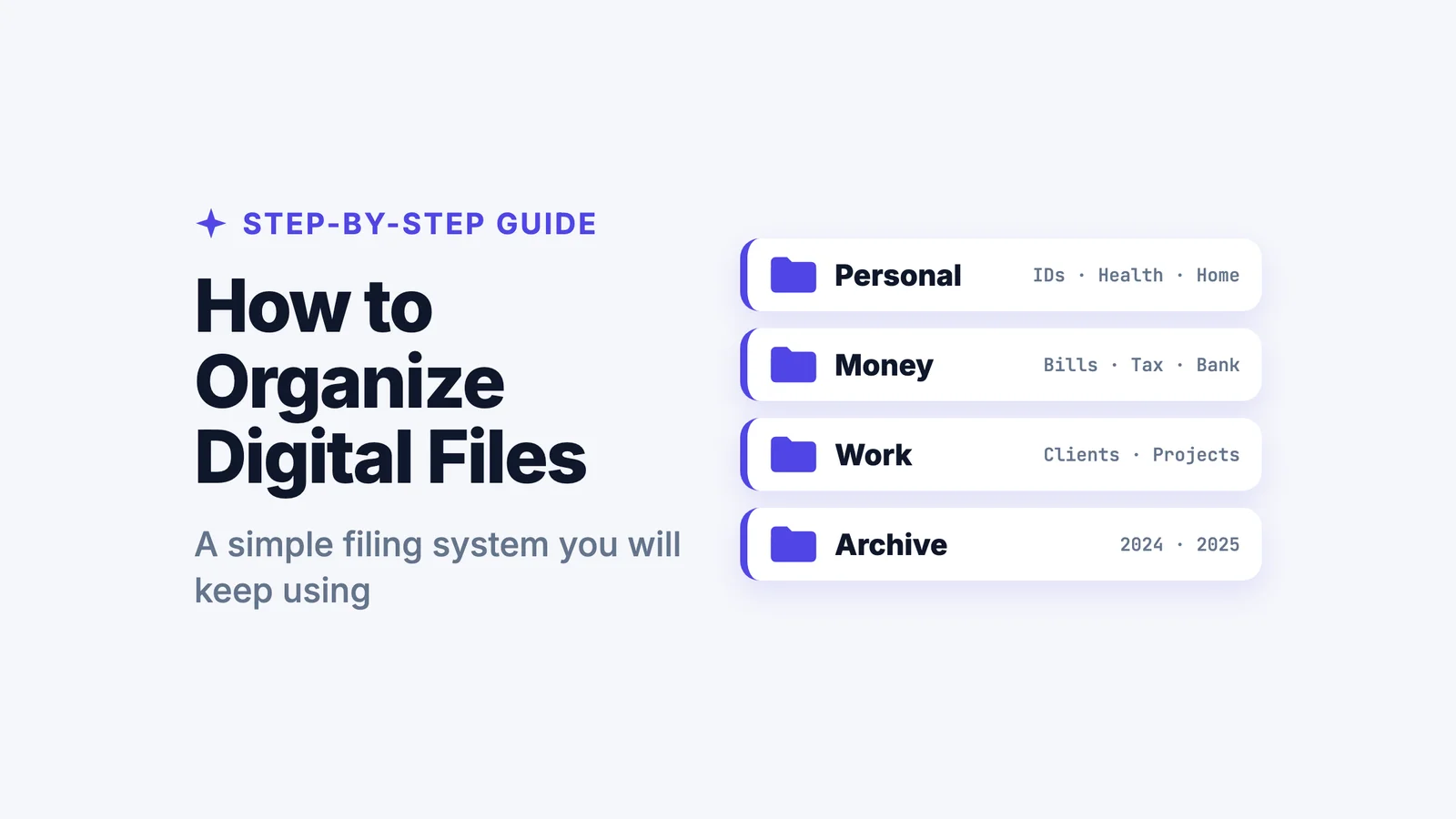
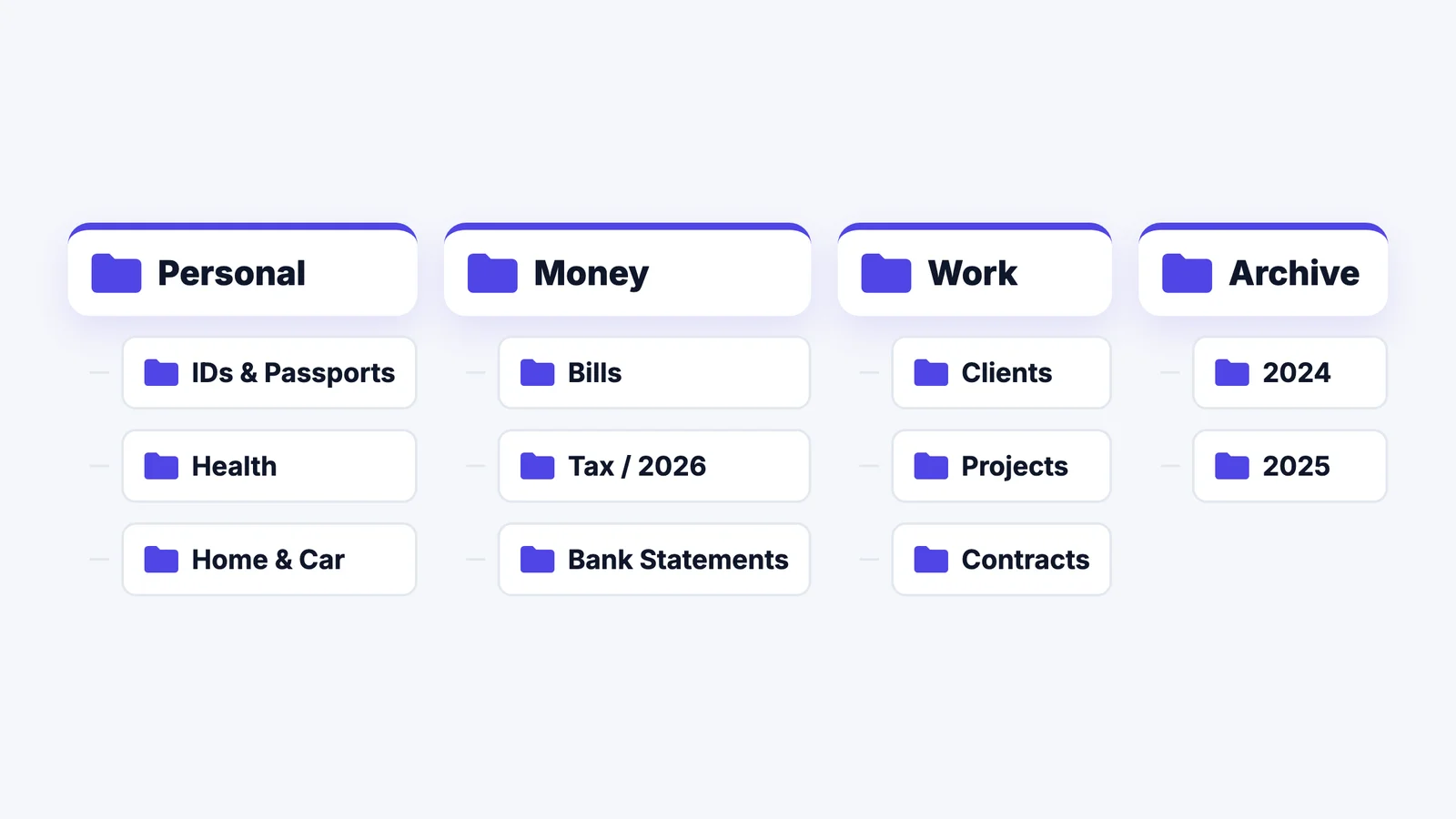
The best digital filing system has few folders at the top and gets specific only as you go down. Organize by area of your life, not by file type: a lease and a photo of the lease belong together, even though one is a PDF and one is a JPG.
Three rules keep it working:
- Four to six top-level folders. More than that and you start hesitating about where things go.
- No more than three levels deep. Money / Tax / 2026 is fine. Money / Tax / 2026 / Receipts / March / Office is too far.
- No "Misc" or "Stuff" folder. If something doesn't fit, it goes in Archive or it gets a proper home.
Here is a template you can copy:
Personal/
  IDs & Passports/
  Health/
  Home & Car/
Money/
  Bills/
  Tax/2026/
  Bank Statements/
Work/
  Clients/
  Projects/
  Contracts/
Archive/
  2024/
  2025/
Change the names to fit your life. A student might use Courses instead of Work; a freelancer might split Work into one folder per client.
Folder templates for students, freelancers and families
| Student | Freelancer | Family |
|---|---|---|
| Courses / (one folder per course) | Clients / (one folder per client) | Each Person / (IDs, health, school) |
| Admin / (fees, visa, housing) | Invoices / 2026 | Money / (bills, tax, bank) |
| Applications / (CVs, cover letters) | Contracts | Home / (lease or deed, car, insurance) |
| Personal | Business Admin / (tax, licences) | Kids' School |
| Archive / (past years) | Archive / (finished clients) | Archive |
Pick the column closest to you and adjust it. The rules stay the same: few top-level folders, no more than three levels.
How to set up your folders on Mac, Windows and cloud drives
- Mac: make the folders in Finder (File, then New Folder) and drag the four top-level ones into the Finder sidebar so they are one click away. Use Finder tags for things that cut across folders, and press Command and Space to search with Spotlight.
- Windows: make the folders in File Explorer, then right-click each one and choose Pin to Quick access. The search box in File Explorer searches names and, for many file types, contents.
- Google Drive: create the folders under My Drive, star the ones you open daily, and use Add shortcut to show one file in two places without copying it.
- Dropbox and OneDrive: create the folders at the top level and turn on the desktop app so the same folders appear on your computer and phone.
Whichever you use, keep one main home. Splitting files evenly between two cloud drives brings the mess straight back.
Step 3: Name every file the same way
A good name tells you what a file is without opening it. Use one pattern everywhere: date first, then who, then what.
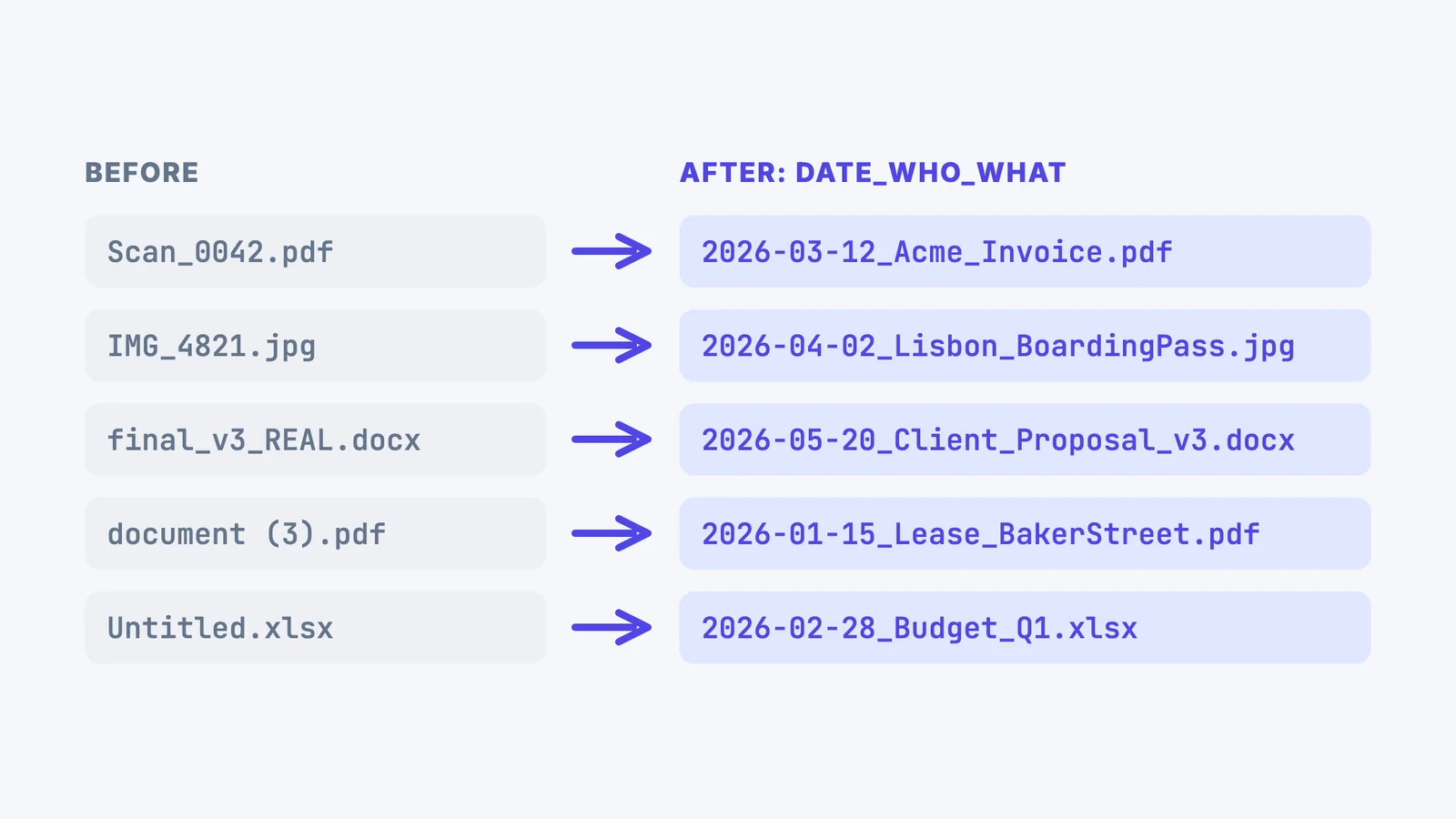
- Write dates as YYYY-MM-DD (2026-03-12). Files then sort in date order on their own.
- Use underscores or hyphens, not spaces. Names stay readable everywhere, including in links and on other devices.
- Number versions, never write "final". Proposal_v3 beats Proposal_final_FINAL.
- Keep it short. Three or four parts is enough: date, who, what, version.
Renaming a backlog by hand is slow. Do the files you open most first, and name new files properly from now on.
Folders, tags or search?
Folders give every file one home. Tags let a file belong to several groups at once, which helps when something cuts across folders, such as a receipt that is both a work expense and a tax document. Search finds files by name or, increasingly, by what is inside them.
Use all three, in that order: folders for the structure, a handful of tags (say, Tax, Urgent, Warranty) for the exceptions, and search when you can't remember where something went. If you find yourself creating a fourth level of subfolders, a tag is usually the better answer.
Step 4: Keep it organized with a weekly habit
A filing system only stays tidy if filing is a habit, not a project.
- Use an Inbox folder. Anything you haven't filed yet goes there, not on the desktop.
- File once a week. Ten minutes, same day each week. Empty the Inbox and Downloads.
- Archive once a year. In January, move last year's finished folders into Archive.
- Back up automatically. See the 3-2-1 rule below.
Back up with the 3-2-1 rule
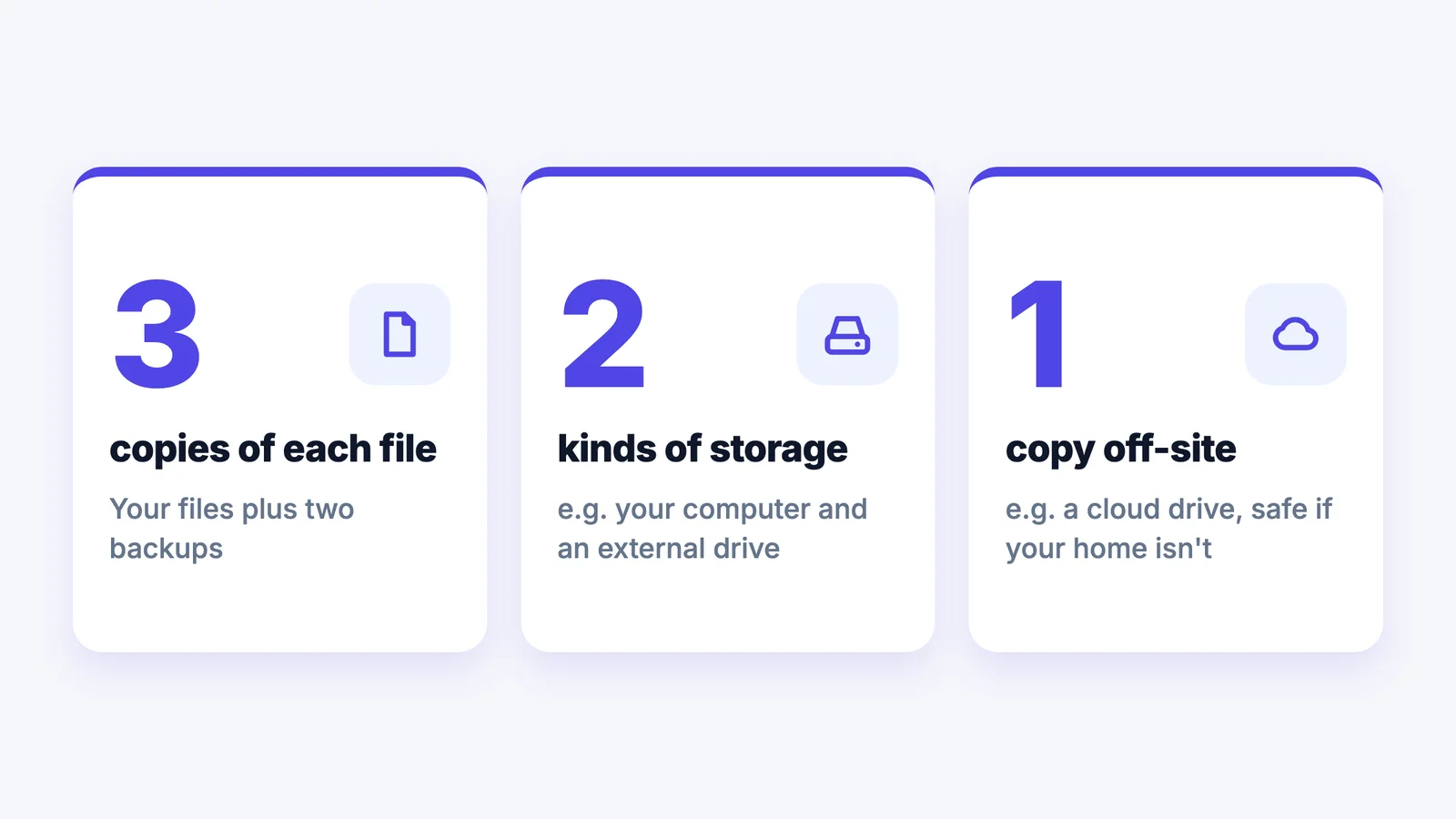
A cloud drive is not quite a backup on its own: if you delete a file by mistake, the deletion syncs too. The 3-2-1 rule covers that. Keep 3 copies of each file, on 2 kinds of storage, with 1 of them off-site. In practice:
- Mac: turn on iCloud Drive's Desktop & Documents Folders option, and run Time Machine to an external drive.
- Windows: turn on OneDrive backup for your Desktop, Documents and Pictures folders, and use File History or the Windows Backup app with an external drive.
- iPhone: turn on iCloud Backup in Settings.
- Android: turn on Google's device backup, and Google Photos backup for photos.
Check once a year that you can actually open a file from each backup.
How long to keep digital documents
Knowing what you can delete makes the Archive folder much smaller. These are common rules of thumb; tax and legal rules differ by country, so check what applies where you live.
| Document | Common guidance |
|---|---|
| Passports, birth and marriage certificates, wills, property deeds | Keep permanently |
| Tax returns and the receipts behind them | In the US, the IRS generally says 3 years after filing, longer in some cases (for example 7 years for a bad-debt or worthless-securities claim) |
| Bank and card statements | Until they are checked against your records, longer if they support a tax return |
| Payslips | Until they match your end-of-year tax statement |
| Warranties and manuals | As long as you own the item |
| Medical records | Keep, especially for ongoing conditions and vaccinations |
When something reaches the end of its time, delete it from every copy, including backups you control.
Turning paper into a digital filing cabinet
A digital filing cabinet is simply this system with your paper documents scanned in. Scan each document with your phone, name it with the same pattern, and file it in the same folders as everything else:
- iPhone: the Notes app and the Files app both have a built-in document scanner.
- Android: the Google Drive app can scan documents straight into Drive.
- With AI: the Filex AI document scanner scans, reads, names and files the page for you.
Shred the paper only once you have checked the scan is readable, and keep originals of anything legally important, such as passports, deeds and wills.
Let AI do the filing
Drag in a messy folder and Filex AI sorts every file into folders and names it clearly. Your first 10 files are free.
Try the free AI file organizerWhere AI can save you time
Steps 2 and 3 are the slow part: deciding a folder and typing a name for every file. An AI file organizer can do both. It reads what is inside each file, sorts it into folders and renames it with a clear name, and you can search later by describing a file instead of remembering where it went.
If you would rather not file by hand, see how to use AI to organize files on your phone, Mac or PC, or try the free AI file organizer on one messy folder.
Common mistakes to avoid
- Too many folders. If you spend more than a few seconds choosing a folder, there are too many.
- Sorting by file type. A PDFs folder and an Images folder split documents that belong together.
- Keeping everything. Old drafts and duplicate downloads make the real files harder to find. Delete or archive them.
- No backup. A system you lose with one broken laptop isn't a system.
- Trying to fix everything in one weekend. Gather first, then file a little each week.
Find any file by describing it
One library on the web, iPhone and Android, searchable by what is inside each file.
Try Filex AI FreeStart with one folder today
You don't need a free weekend. Make the four top-level folders, move this week's files into them, and name each one with the date first. Next week, do the same with Downloads. Within a month the backlog is gone, and finding any file takes a minute.