You have a paper form, a receipt or a lease in your hand, and someone needs a copy now. You don't have a scanner. You have your iPhone.
The quick answer: open the Notes app, tap the camera icon, choose Scan Documents, hold your iPhone over the page and tap Save. The scan is stored inside that note as a PDF.
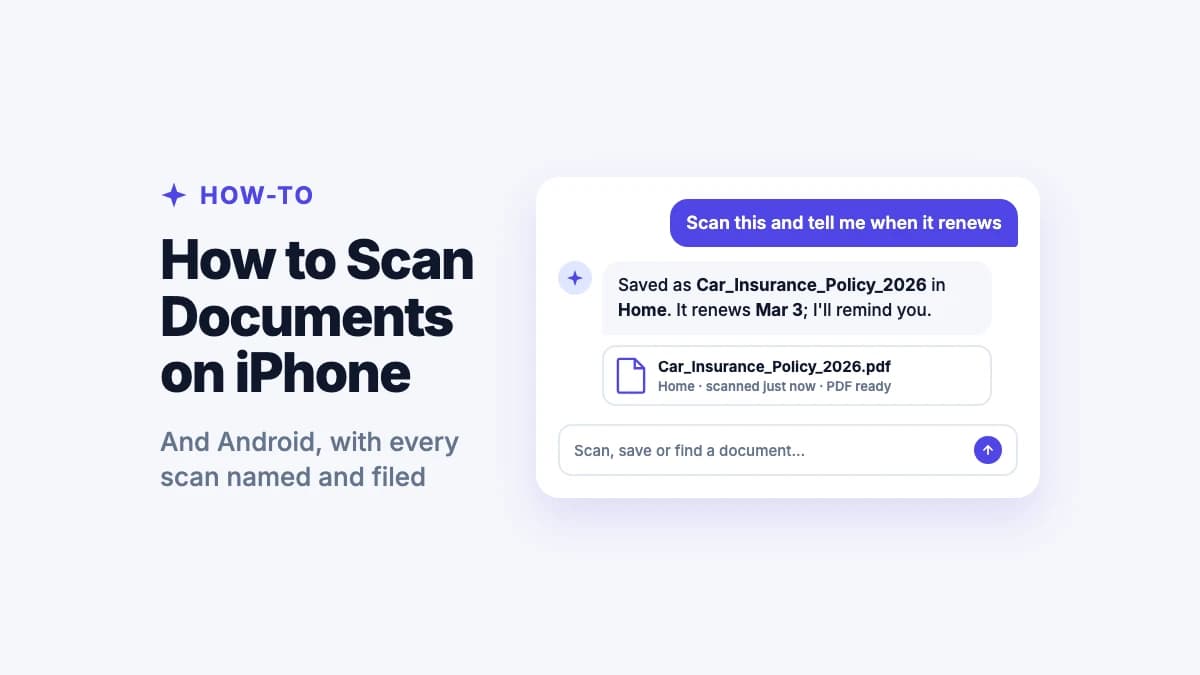
The better way: scan with Filex AI. Point your camera at the page and Filex reads it, names it (for example Car_Insurance_Policy_2026), files it in the right folder, reminds you of dates inside it, and lets you download it as a PDF whenever you need to send it.
Below are the exact steps for each way to scan on iPhone and Android, tips for clean scans, and how to find a scan again months later.
Three ways to scan a document on iPhone
| Notes app | Files app | Filex AI | |
|---|---|---|---|
| Where the scan goes | Inside a note | The folder you're in | Filed automatically by what it is |
| File name | None (it's part of the note) | "Scanned Document" | Named from the content |
| Search by what it says | Partly | No (file names only) | Yes, scans included |
| PDF to send | Yes | Yes | Yes, download as PDF |
| Reminders for dates inside | No | No | Yes |
How to scan with Filex AI (recommended)
- Open Filex AI and tap the scan button.
- Point your iPhone at the document and take the photo.
- That's it. Filex reads the page with OCR, works out what it is (a bill, a lease, an ID), gives it a clear name, files it in the right folder, and picks up any due, renewal or expiry dates as reminders.
- Need to send it? Open the scan and download it as a PDF, then share it by email or upload it wherever it's needed.
Already have a paper photographed in your camera roll, or a PDF from email? Share it to Filex AI from the Share button and it's organized the same way.
How to scan with the Notes app
- Open Notes and create a new note (or open an existing one).
- Tap the camera icon (or the paperclip on newer iOS versions), then Scan Documents.
- Hold your iPhone over the page. With Auto on, it captures by itself; otherwise tap the shutter button.
- Drag the corners to adjust the crop, then tap Keep Scan. Repeat for more pages.
- Tap Save. The scan is now in the note.
To get a PDF out of Notes, tap the scan, tap Share, then Save to Files or send it straight from there.
How to scan with the Files app
- Open Files and go to the folder where you want the scan.
- Tap the three dots at the top, then Scan Documents.
- Scan each page, then tap Save.
The PDF lands in that folder as "Scanned Document". Rename it straight away (touch and hold, then Rename), or it becomes one of many identical names.
Scan it, and it files itself
Filex AI reads every scan, names it from what it says, files it, and reminds you about dates inside. Download any scan as a PDF. Your first 10 files are free.
Download Filex AIHow to get a clean, readable scan
Blurry or shadowy scans get rejected by banks, schools and visa offices. A few habits fix most problems:
- Use good, even light. Daylight near a window is best. Avoid your own shadow over the page.
- Put the page on a dark, flat surface. The contrast helps your iPhone find the edges.
- Hold the phone parallel to the page. Tilting causes a stretched, wedge-shaped scan.
- Let auto-capture work. Hold still for a second instead of tapping too early.
- Check every page before saving, and rescan any page with glare or cut-off text.
- Flatten folds in receipts and letters with your hand or a book.
How to scan several pages into one document
- Filex AI: scan each page in a row; you can then download the document as a PDF to send.
- Notes and Files: after the first page, keep scanning. Each page is added to the same scan until you tap Save, so a 5-page lease becomes one PDF.
To fix a page later in Notes, open the scan, swipe to the page, and tap the crop or rotate buttons, or Retake.
How to sign a scanned document on iPhone
- Open the scanned PDF (in Files, or open the Notes scan).
- Tap the Markup button (the pen tip).
- Tap +, then Add Signature, and sign with your finger.
- Drag the signature into place and tap Done.
Then share the signed PDF by email or upload it. Keep a copy in Filex AI so the signed version is named and easy to find later.
How to scan to PDF on iPhone
Most places that ask for a scan want a PDF:
- Filex AI: open the scan and download it as a PDF.
- Notes: tap the scan, tap Share, then Save to Files or send it.
- Files: scans are already PDFs.
Filex can also turn a PDF into images if a form or website only accepts JPG files.
How to scan documents on Android
- Filex AI on Android: works the same as on iPhone. Tap scan, take the photo, and Filex reads, names and files it, with PDF download when you need it.
- Google Drive: open the Drive app, tap the + button, then Scan. Take the photo, adjust the crop, and tap Save to put the PDF in Drive.
Many Android phones also have a scan mode in the camera app. Like Notes and Files on iPhone, these make the PDF and leave naming and filing to you.
Find any scan by what it says
Type "car insurance renewal" or "Costco receipt" and Filex AI finds the scan, even if you never named it.
See the AI document scannerWhere did my scan go?
- Notes scans stay inside the note you made. Search Notes for words you remember from the note.
- Files scans are in the folder you were in, named "Scanned Document". Check Recents in the Files app.
- Google Drive scans are in Drive, usually in My Drive.
- Filex AI scans are filed by type (Home, Money, Health, IDs and so on), and you can search by what the scan says: "car insurance renewal" or "receipt from Costco" finds it, even if you never named it yourself.
This is the biggest difference between the options. Notes and Files help you make the scan; Filex AI helps you find it again. For more on finding documents, see how to find files and documents on iPhone.
Scanning problems and quick fixes
- "Scan Documents" is missing in Notes. Make sure the note is stored on your iPhone or in iCloud, not in a Gmail or other email account; those notes can't hold scans.
- The scan is blurry or rejected. Add light, put the page on a dark surface, hold still for auto-capture, and wipe the camera lens.
- It keeps cropping the wrong edges. Switch from Auto to Manual capture and drag the corners yourself.
- The text in my scan can't be searched. Notes and Files make a picture of the page. Filex AI reads every scan with OCR, so you can search for any word on it.
- I can't find a scan I made last month. Notes scans are inside notes and Files scans are all called "Scanned Document". Scan with Filex AI and each scan is named from its content and filed for you.
How AI organizes your scans automatically
Scanning used to stop at a picture of the page. An AI document scanner keeps going:
- It reads the page. OCR turns the image into text, including handwriting, print or cursive.
- It works out what the document is. A utility bill, a lease, a lab report, a passport.
- It pulls out the details. Names, companies, amounts and dates.
- It names and files the scan.
PGE_Electricity_Bill_Sep_2026in Money, instead of "Scanned Document 4". - It reminds you. Renewal, due and expiry dates become reminders, so the policy you scanned in March doesn't lapse in December.
You can group scans with Lenses too, like "everything for tax season" or "Mom's medical records", and the right scans join automatically.
Your scanner and filing cabinet in one app
Scan on iPhone or Android, and every page is named, filed and searchable, with reminders before anything expires.
Get Filex AIScan it once, find it every time
Notes and Files will make a scan in seconds. Filex AI makes sure you never lose it: every page named, filed and searchable by what it says, with reminders before anything expires and a PDF ready whenever someone asks. Your first 10 files are free.
Choosing an app? See our list of the best scanner apps for iPhone and Android, and once your documents are scanned, here's how to save documents on iPhone so everything lives in one place.