A landlord emails the lease. The airline sends a boarding pass. School needs a signed form back by Friday. You tap the file, it opens, and then the question: how do you keep it on your phone so you can find it next week?
The quick answer: open the document, tap the Share button (the square with an arrow), choose Save to Files, pick iCloud Drive or On My iPhone, and tap Save. The file is now in the Files app.
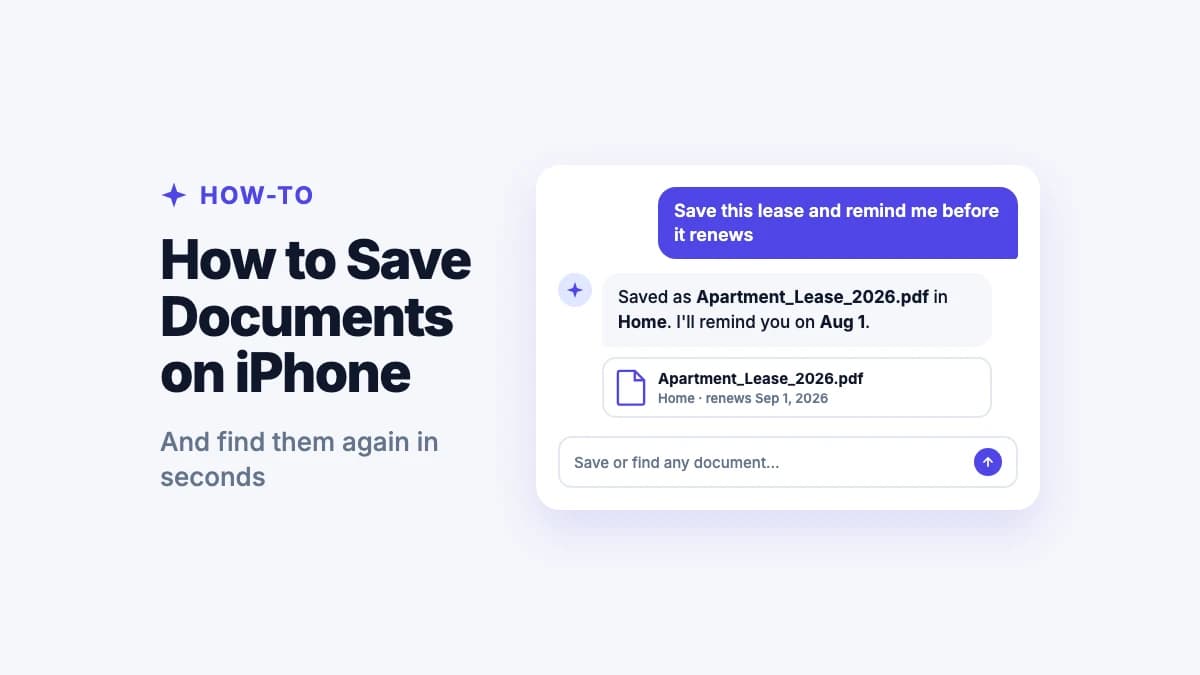
The better way: share it to Filex AI instead. Filex saves the document with a clear name, files it in the right folder, makes it searchable by what's inside, and reminds you before it expires.
Below are the exact steps for every place documents come from, where they end up, and how to keep them findable.
How to save a document on iPhone (any app)
Almost every app uses the same Share button:
- Open the document (PDF, Word file, image, ticket).
- Tap Share (the square with an arrow pointing up).
- Choose Save to Files.
- Pick a location: iCloud Drive or On My iPhone, and a folder if you want.
- Tap Save.
To save into Filex AI, do the same thing but choose Filex AI in the Share sheet in step 3. Filex reads the document, renames it from its contents and files it for you.
Save it once, find it every time
Share any document to Filex AI and it is renamed, filed and searchable by what's inside. Your first 10 files are free.
Download Filex AIWhere each app saves your documents
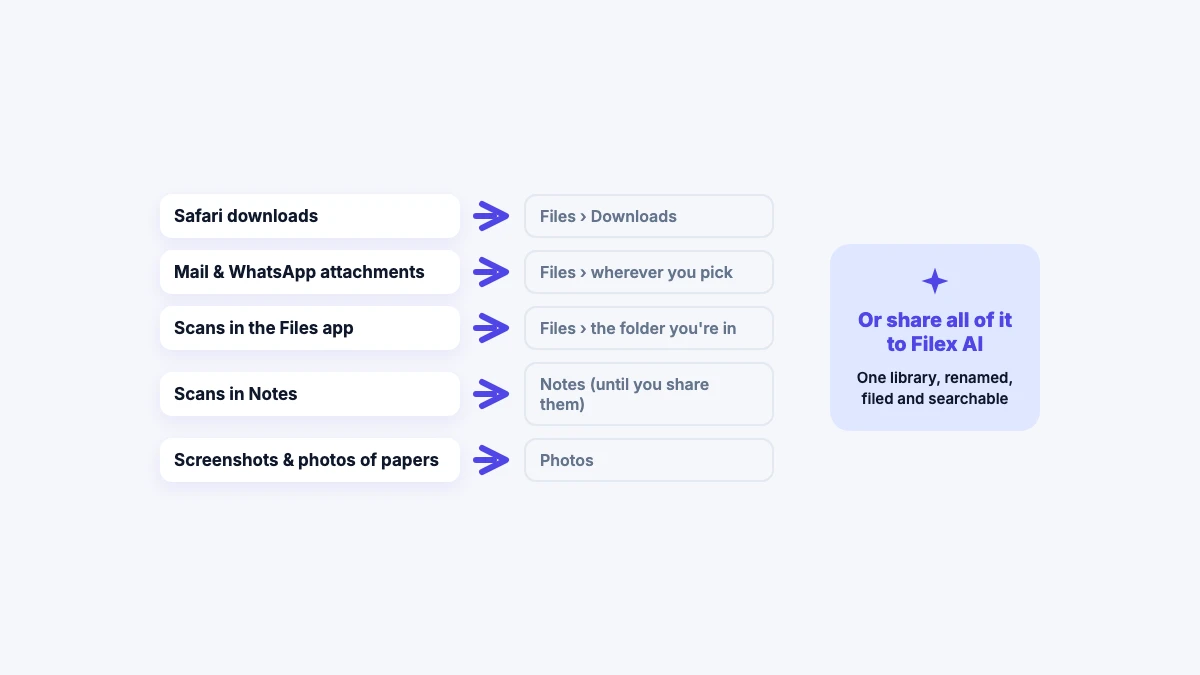
This is why documents "disappear" on iPhone: every app has its own idea of where things go.
Email attachments (Mail, Gmail, Outlook)
- Mail: touch and hold the attachment, then tap Save to Files. Or open it, tap Share, then Save to Files.
- Gmail and Outlook: open the attachment, tap Share (or the three dots), then Save to Files.
Safari downloads
- A download link: tap it and choose Download. The file goes to the Downloads folder in Files (in iCloud Drive by default; you can change this in Settings, Apps, Safari, Downloads).
- A PDF open in Safari: tap Share, then Save to Files.
- A web page you want to keep: take a screenshot, tap the preview, choose Full Page, then Save PDF to Files.
WhatsApp and Messages
- WhatsApp: open the document, tap Share, then Save to Files. Photos you save from WhatsApp go to Photos instead.
- Messages: tap the document, tap Share, then Save to Files. Touch and hold a photo and tap Save to put it in Photos.
Google Drive, Dropbox and OneDrive
Open the file in the app, tap the three dots, choose Open in, Send a copy or Export, then Save to Files. You can also add these drives to the Files app so they show up under Browse.
Paper documents (scan them)
- Filex AI: use the built-in scanner. The scan is read, named (for example
Car_Insurance_Policy_2026.pdf) and filed straight away, with any renewal date added as a reminder. - Files app: open a folder, tap the three dots, then Scan Documents. The scan saves as a PDF named "Scanned Document" in that folder.
- Notes: tap the camera icon, then Scan Documents. The scan stays inside the note until you share it to Files.
iCloud Drive or On My iPhone: which should you pick?
| iCloud Drive | On My iPhone | |
|---|---|---|
| Where it lives | Apple's cloud, synced to your iPhone, iPad and Mac | Only on this phone |
| If you lose your phone | Files are safe | Files are gone unless the phone was backed up |
| Storage | Uses iCloud storage (5 GB free) | Uses phone storage |
| Best for | Documents you need everywhere | Large or temporary files |
For important documents (IDs, insurance, leases, medical records), choose iCloud Drive or a cross-device app like Filex AI, so one lost phone doesn't mean lost paperwork. Filex keeps your library on the web and Android too, encrypted in transit and at rest.
Where are my saved files on iPhone?
Open the Files app (the blue folder icon) and:
- Tap Recents to see everything you opened or saved lately.
- Tap Browse, then iCloud Drive or On My iPhone, to see your folders. Safari downloads are in the Downloads folder.
- Use the search bar at the top of Browse. It matches file names, so it only works if you remember what the file was called.
If you don't remember the name, the Files app can't help. Filex AI can: it searches by what's inside each document, so typing "car insurance" or "lease that mentions pets" finds the right file even if it's called document (3).pdf. See how to find files and documents on iPhone.
Forgot what you called it? Search what's inside
Type "car insurance" or "lease that mentions pets" and Filex AI finds the document, even scans and photos of paper.
Try Filex AI FreeHow to keep saved documents easy to find
If you save documents by hand, two habits make the biggest difference:
1. A few simple folders. Six is enough for most people:
- IDs: passport, driver's license, birth certificate
- Money: bills, bank statements, tax forms, receipts
- Home: lease or mortgage, insurance, warranties
- Health: insurance cards, test results, prescriptions
- Work: contracts, pay stubs, offer letters
- Travel: tickets, bookings, visas
2. Names that say what the file is. Rename each file when you save it (touch and hold, then Rename). Put the date first so files sort in order: 2026-03_Electricity_Bill_PGE.pdf.
The catch: nobody keeps this up on a phone keyboard. That's the part Filex AI does for you.
The better way: save everything to Filex AI
Filex AI turns your iPhone into a document wallet that organizes itself:
- Save from any app. Share a PDF, photo, screenshot or Word file to Filex from Mail, Safari, WhatsApp or Files, or scan paper with the built-in scanner.
- Named and filed for you. Filex reads each document and gives it a clear name, like
Delta_Boarding_Pass_NYC_Oct12.pdf, then files it in the right folder. - Found by what's inside. Search "warranty for the fridge" or ask "when does my lease renew?" and get the document, even scans and photos of paper.
- Reminders before things expire. Filex picks up renewal and expiry dates from leases, insurance and IDs and reminds you in time.
- On every device. The same library on iPhone, Android and the web.
Your first 10 files are free. Want to compare it with the built-in app first? See Files app vs Filex AI, or the full list of the best file manager apps for iPhone.
Your iPhone, as a document wallet
Save, scan and find every important document in one app, with reminders before anything expires.
Get Filex AI for iPhoneSave it once, find it every time
Next time someone asks for "that document", you don't want to scroll through Recents hoping. Save the documents that matter, IDs, insurance, leases, bills, into Filex AI, and you can pull any of them up in seconds by typing what you remember. Your first 10 files are free.