

To organize screenshots on iPhone, open Photos, go to Collections, then Media Types, and tap Screenshots. From there, search by a word inside a screenshot, move the ones worth keeping into a few albums, and delete the rest. If you have thousands, an AI screenshot organizer can read every screenshot, give it a real name and sort it for you.
You know the moment. You're at the gate, the agent asks for your booking code, and you're scrolling past memes, old chats and a recipe from last spring. You saved it. You just can't find it.
You're not disorganized. The iPhone saves every screenshot into one long list by date, mixed in with your photos, and names them all IMG_4821.PNG. Below are five ways to fix that, starting with the free tools already on your phone.
Find It, File It, Forget It: The 3-Step Plan
Every method below fits one of three steps:
- Find it. See all your screenshots in one place and search them by the words inside.
- File it. Keep the ones that matter in a few simple albums and delete the rest.
- Forget it. Let an app sort new screenshots for you, so the pile never comes back.
Steps 1 and 2 are free and only use the Photos app. Step 3 is optional.
Method 1: Open the Screenshots Album
Your iPhone already collects every screenshot in one place, separate from your photos:
- Open Photos.
- Scroll down to Collections (on older iOS versions, tap Albums).
- Under Media Types, tap Screenshots.
This is your working area for everything below. It still sorts by date, but at least your vacation photos are out of the way.
Can't see a screenshot you just took? Check the Recently Deleted and Hidden albums under Utilities. For more places to look, see where screenshots are saved on every device.
Method 2: Search Screenshots by the Text in Them
The fastest way to find one screenshot is to search for a word that's in it. The Photos app reads text inside images, so a booking code, a store name or a word from a chat is often enough.
- Open Photos and tap the Search icon.
- Type a word you remember, such as "boarding", "order" or "invoice".
- Look for results matched by Text and tap the one you want.
On iPhones with Apple Intelligence, you can also search with a short description, such as "receipt from the hardware store".
Good for: finding one screenshot when you remember a word in it. Not so good for: when you don't remember the exact words, or when the screenshot is a chart, a photo of a product or anything with little text.
Have screenshots on a computer too? The free screenshot search tool finds text inside screenshots right in your browser.
Can't remember the exact words?
Filex AI reads every screenshot, so you can find one by describing it instead of scrolling.
Try Filex AI FreeMethod 3: Sort Screenshots Into Albums
Albums are how you file the screenshots worth keeping. Keep it simple: five or six albums you'll actually use beat thirty you won't.
Good starter albums:
- Receipts & Orders
- Tickets & Bookings
- Recipes
- Ideas & Shopping
- Work
To make an album, open Photos, go to Collections, tap + next to Albums (or New Album) and give it a name.
To move screenshots into it:
- Open the Screenshots album and tap Select.
- Tap each screenshot, or drag your finger across a row to select many at once.
- Tap the More button (three dots), then Add to Album, and choose the album.
Adding a screenshot to an album doesn't make a copy. It stays in your library and also shows in the album.
Two more built-in tools help:
- Favorites: tap the heart on a screenshot you'll need again soon, like a ticket for next week.
- Hidden: for screenshots with passwords, ID numbers or bank details, tap More, then Hide. The Hidden album is locked with Face ID.
Good for: a few hundred screenshots. Not so good for: a backlog of thousands. Every screenshot is filed by hand, and the names stay IMG_4821.PNG.
Method 4: Delete Screenshots in Bulk and Free Up Storage
Most screenshots are only useful for a day: a map, a meme to send, a code you've already used. Clearing them out makes everything else easier to find, and frees up storage.
- Open the Screenshots album and tap Select.
- Drag your finger across the rows you want to delete. Keep dragging down to select hundreds at once.
- Tap the trash icon and confirm.
Deleted screenshots stay in Recently Deleted for 30 days, so nothing is gone for good by accident. To free up storage right away, open Recently Deleted and tap Delete All.
Also check Duplicates under Utilities. If you took the same screenshot twice, Photos can merge the copies for you.
Method 5: Organize Screenshots Automatically With AI
If you have thousands of screenshots, filing them by hand isn't realistic. An AI screenshot organizer does the sorting for you. Over 50,000 people use Filex AI to keep their screenshots findable.
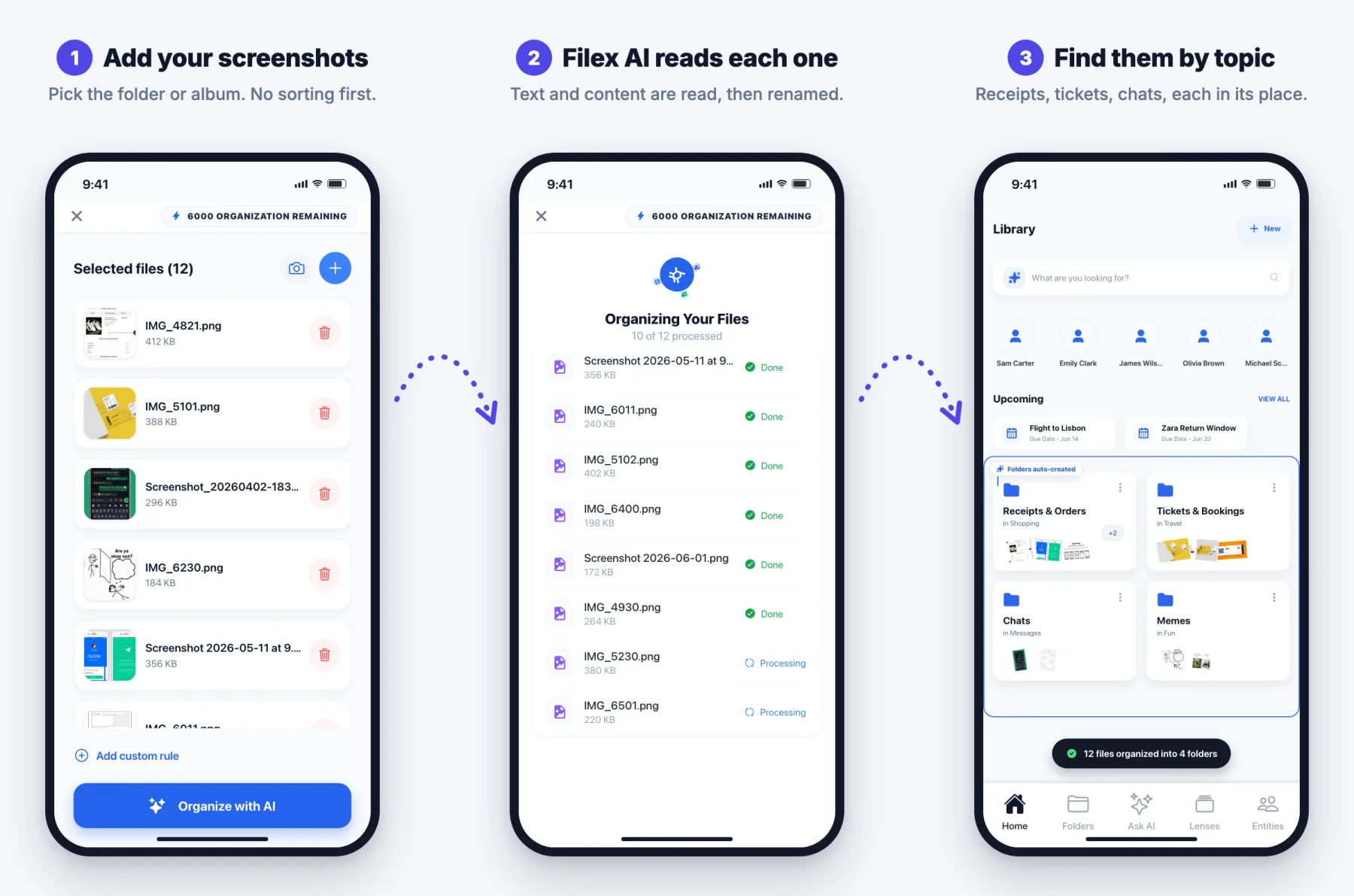
Filex AI works like this:
- Add your screenshots. Pick them from Photos or share them into the Filex AI app.
- Filex AI reads each one. It reads the text, works out what the screenshot is, and renames it from IMG_4821.PNG to something like "Lisbon flight boarding pass".
- Find them sorted. Screenshots land in topics such as Receipts & Orders and Tickets & Bookings. To find one, describe it: "my Lisbon boarding pass" or "the hotel Wi-Fi password".
The same library works on Android and the web, so you can find a screenshot from your laptop that you took on your phone.
Good to know: Filex AI organizes your first 10 files free, then costs $7.99 a month or $44.99 a year. Screenshots are processed on Filex AI's servers so they're available on every device. They're encrypted in transit and at rest, never sold, and never used to train AI models.
Good for: big backlogs, and anyone who'd rather describe a screenshot than remember the exact words in it. Not so good for: people who want everything to stay on the phone. For that, stick with Methods 1 to 4.
Thousands of screenshots to sort?
Filex AI reads, renames and sorts them into topics for you. Your first 10 files are free.
Get Filex AI for iPhoneWhich Method Should You Use?
| Your situation | Best method |
|---|---|
| You need one screenshot right now | Method 2: search by text |
| A few hundred screenshots to tidy | Methods 3 and 4: albums, then delete the rest |
| iPhone storage is full | Method 4: delete in bulk, then empty Recently Deleted |
| Thousands of screenshots, no time | Method 5: organize automatically with AI |
| You switch between iPhone, Android and a computer | Method 5: Filex AI works on all three |
Keep Your Screenshots Organized From Now On
A clean-up only lasts if new screenshots don't pile up again. Three habits help:
- Delete as you go. After you take a screenshot, tap the preview in the corner, then Done, and choose Delete Screenshot if you only needed it to copy or share something.
- File the important ones straight away. A ticket or receipt goes into its album the same day.
- Do a 5-minute clear-out once a month. Open the Screenshots album, select everything older than a month that you don't need, and delete it.
Or skip the habits and let Filex AI sort new screenshots for you.
Find any screenshot by asking
Type what you remember and get the screenshot back, on iPhone, Android or the web.
Try Filex AI FreeConclusion
You save screenshots because they matter: a booking code, a receipt, a recipe, an idea. They should be easy to find again.
Start with the free steps. Open the Screenshots album, search by a word you remember, file the keepers into a few albums, and delete the rest. If the pile is too big for that, let an AI screenshot organizer do the sorting, so the next time someone asks for that code, it takes seconds.
Try the Filex AI screenshot organizer, or compare your options in the 7 best screenshot organizer apps.