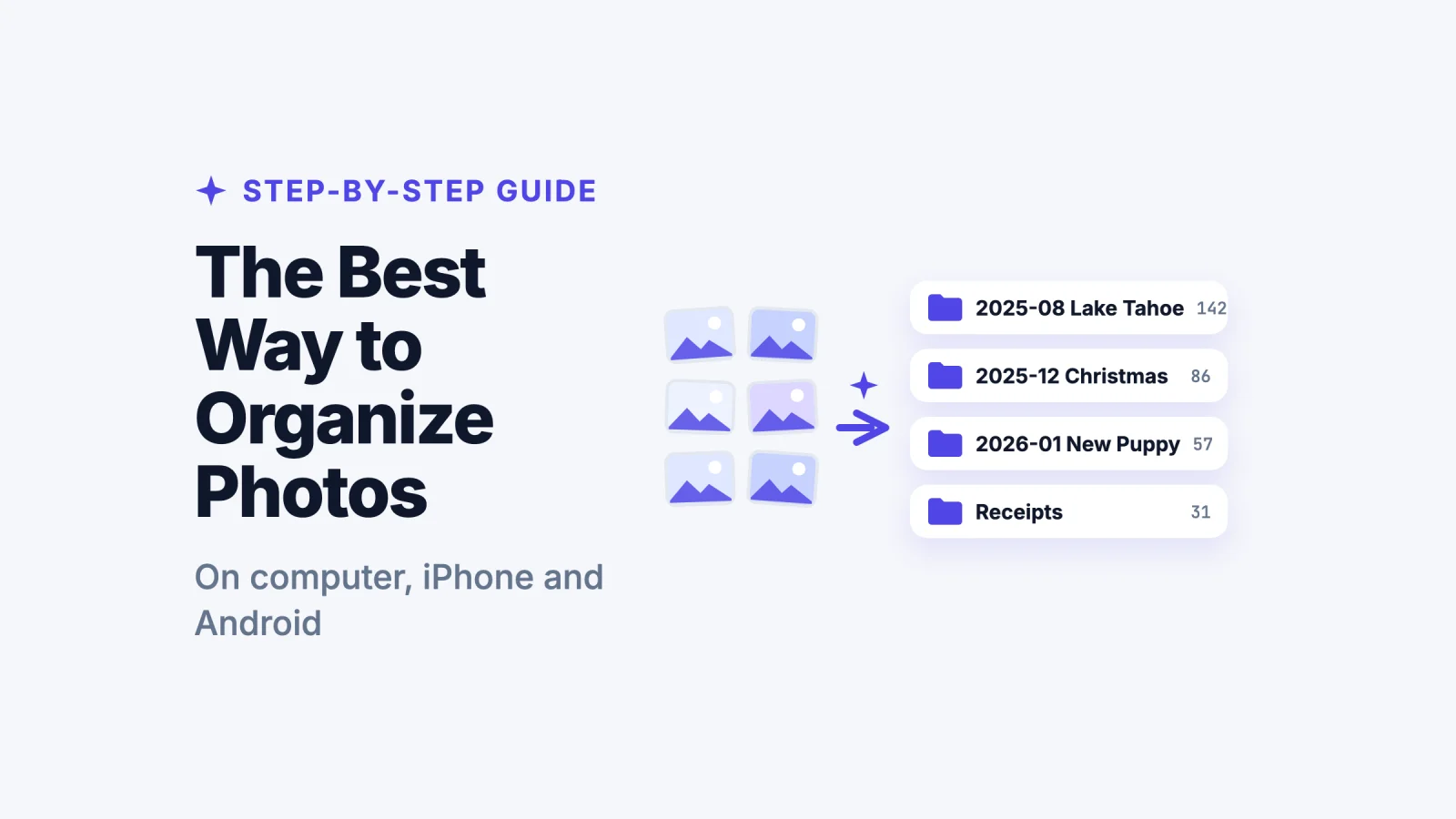
The best way to organize photos is to keep them all in one place, delete the duplicates and the shots you don't need, split your memories from your "utility" photos (receipts, screenshots, documents), and file the rest into folders by year and event with a date-first name. Then spend a few minutes each month on new photos. It works on a computer, an iPhone and an Android phone.
Below is the whole method step by step, with a folder template you can copy, the exact settings for Mac, Windows, iPhone and Android, what to do with old prints and family photos, and where AI can do the slow part for you.
Let AI sort your photos
Pick a few photos or a whole album and Filex AI files each one into a folder by what it shows, with a clear name. Your first 10 files are free.
Try Filex AI FreeWhy your photo library got out of hand
Taking a photo takes a second. Sorting it takes a decision, and nobody stops at a birthday party to file pictures. So photos pile up on your phone, your laptop, old drives, WhatsApp and a cloud account or two, all with names like IMG_4821.jpg.
There is a second reason too. Most of what's on a phone today isn't memories. It's a photo of a parking spot, a receipt, a Wi-Fi password, a screenshot of a booking. Those "utility" photos bury the pictures you care about, and the ones you need later are the hardest to find.
None of this means you are disorganized. You've just never had a system that was quicker to follow than to ignore. The one below is built to be exactly that.
Short on time? Start with this one-hour plan
Don't try to fix ten years of photos in one weekend. Set a timer for one hour and do only this:
- 10 minutes: choose where your photos will live (Step 1) and turn on backup.
- 20 minutes: delete duplicates and obvious junk from the last three months (Step 2).
- 20 minutes: move this year's receipts, documents and screenshots out of your main library (Step 3).
- 10 minutes: create the folders for this year from the template in Step 4.
That's day one. Older years can wait; do one year a week and the backlog disappears within a couple of months.
How long will it take?
A rough guide, if you work in short sessions and delete as you go:
| Photos in your library | First clean-up | After that |
|---|---|---|
| Under 2,000 | One or two evenings | 5 minutes a month |
| 2,000 to 10,000 | Two to four weekends of one-hour sessions | 10 minutes a month |
| 10,000 to 50,000 | One year of photos per week, for a few months | 15 minutes a month |
| More than 50,000 | Do this year by hand; let AI or app search handle the rest | 15 minutes a month |
The biggest time saver is Step 2. Every photo you delete is one you never have to sort.
Step 1: Put all your photos in one place
List everywhere your photos are hiding. For most people it's:
- Phone: the camera roll, plus screenshots and downloads
- Chat apps: WhatsApp, Telegram and Messenger save their own copies
- Computer: Pictures, Downloads and the desktop
- Cloud: iCloud Photos, Google Photos, OneDrive, Dropbox
- Old devices: USB sticks, SD cards, external drives, an old laptop
Pick one main home and move everything there in batches. If you want an app that handles the work, use iCloud Photos (Apple devices) or Google Photos (Android and everything else). If you prefer plain files you control, use a Photos folder on your computer, synced to a cloud drive.
Whichever you choose, keep just one. Splitting photos evenly between two services brings the mess straight back.
App library or plain folders?
| Photo app (iCloud Photos, Google Photos) | Plain folders on a computer | |
|---|---|---|
| Best for | Phone-first people who mostly browse | People who want control and long-term files |
| Sorting | Albums, faces, places, search built in | Folders and file names you set |
| Moving away later | Possible, but exports can be slow and messy | Copy the folder anywhere |
| Cost | Free tier, then a monthly plan for more storage | Your disk plus any cloud drive |
Many people use both: the phone app for everyday browsing, and a yearly copy into plain folders as the long-term archive.
Step 2: Delete duplicates, blurry shots and junk
Deleting first makes every later step faster. Go through one month at a time and remove:
- Duplicates and near-duplicates. Five shots of the same sunset, keep the best one.
- Blurry and accidental photos. Pocket shots, thumbs, black frames.
- Screenshots you no longer need. Old memes, expired tickets, codes you've used.
- Chat media you never asked for. Forwarded images and stickers.
A quick way to decide: scroll through a month and favorite the photos you would be sad to lose. Then look only at the rest and delete anything that isn't a favorite and isn't useful. It is much faster than judging every photo twice.
Built-in tools help:
- iPhone and Mac: the Photos app has a Duplicates album (iOS 16 and later) that merges identical photos.
- Android: Files by Google can find and delete duplicate files, and Google Photos' Free up space removes phone copies of photos that are already backed up.
- Any folder: the free AI duplicate file finder spots copies for you.
To stop new clutter, turn off auto-saving of chat media to your photo library (in WhatsApp: Settings, then Chats, then Save to Photos on iPhone, or Media visibility on Android).
Step 3: Separate memories from "utility" photos
This is the step most guides skip, and it makes the biggest difference. Your library holds two very different kinds of photo:
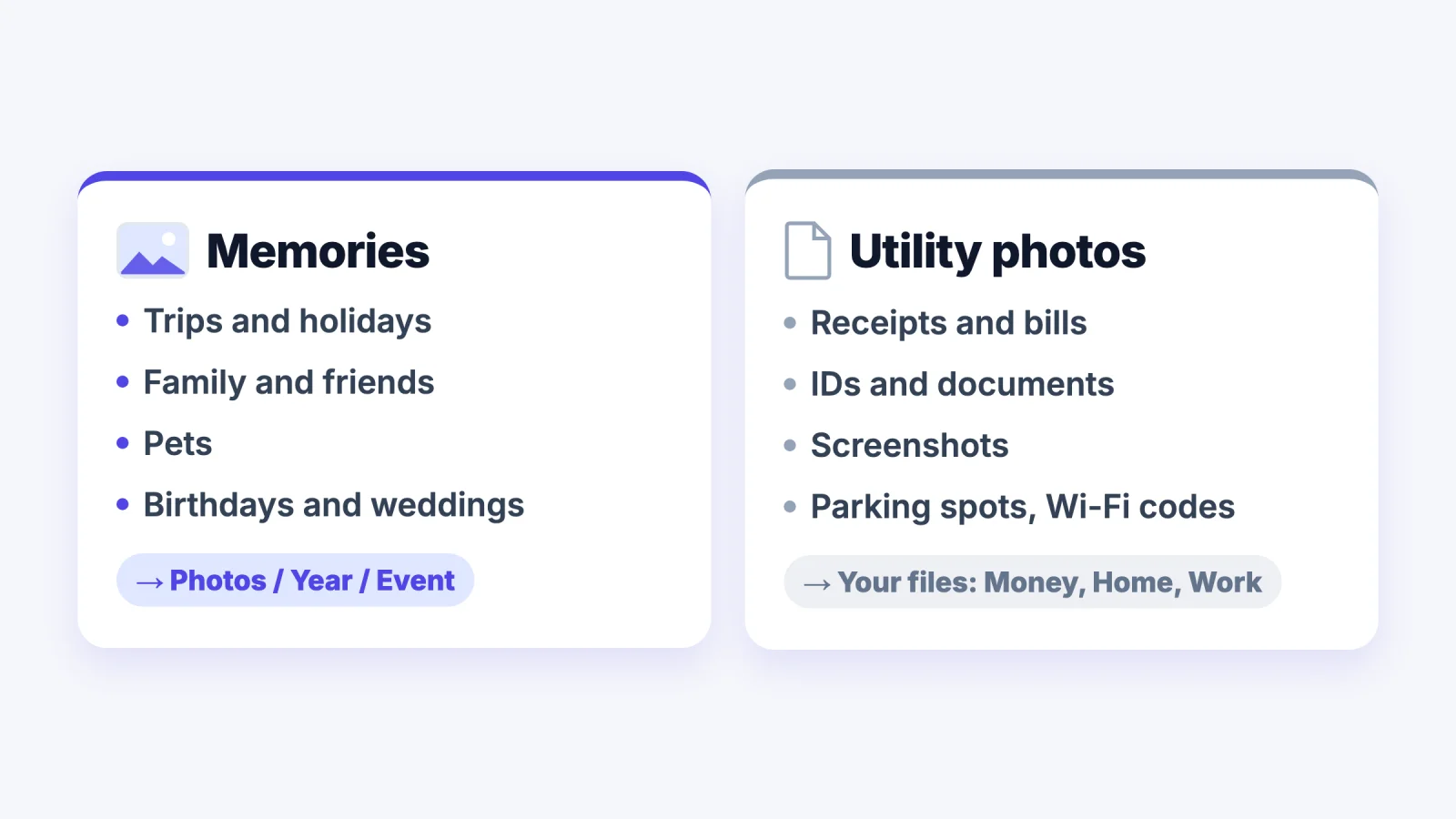
| Memories | Utility photos |
|---|---|
| Trips, family, friends, pets, events | Receipts, bills, IDs, documents |
| You browse them by time and place | You search for one specific photo |
| Belong in albums or event folders | Belong with your other files (money, work, home) |
| Kept for good | Many can be deleted after a while |
Move utility photos out of your memories. A photo of a receipt belongs with your bills, not between two holiday pictures. If you already keep a digital filing system, file them there; our guide on how to organize digital files has a folder template for documents. Screenshots get their own treatment; see how to organise screenshots automatically.
Once utility photos are out, your camera roll suddenly looks like what it should be: your life, not your admin.
Step 4: Build a simple folder structure for photos
For memories, the structure that lasts is year, then event. Dates never change, and everyone remembers roughly when something happened.
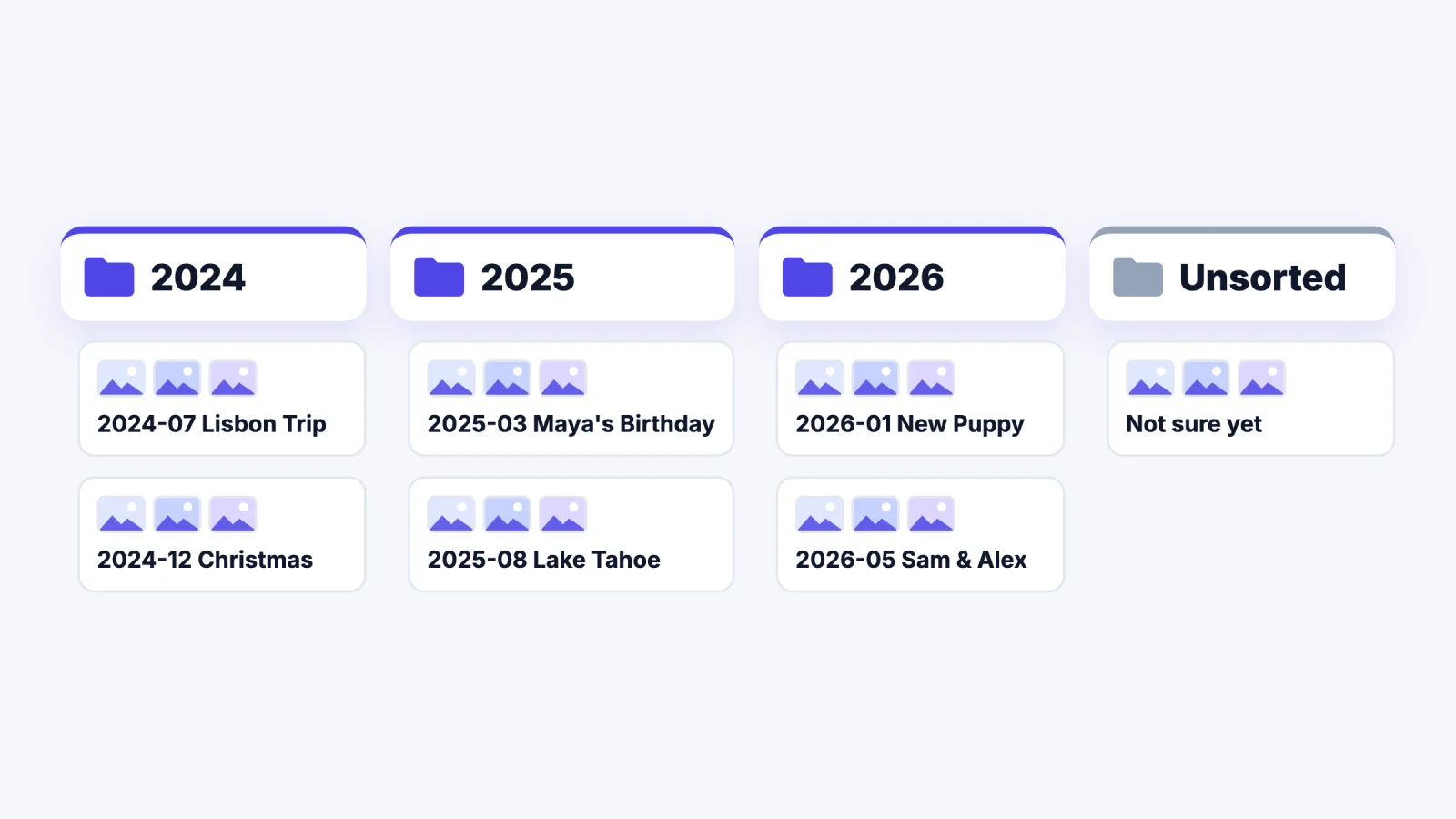
Here is the same structure as a template you can copy:
Photos/
  2024/
    2024-07 Lisbon Trip/
    2024-12 Christmas at Mum's/
  2025/
    2025-03 Maya's Birthday/
    2025-08 Camping Lake Tahoe/
  2026/
    2026-01 New Puppy/
    2026-05 Wedding - Sam & Alex/
  Unsorted/
Three rules keep it working:
- Two levels are enough. Year, then event. Deeper than that and you start hesitating.
- Start event folders with YYYY-MM. They then sort in date order on their own.
- Keep an Unsorted folder. Anything you can't place goes there, not into a "Misc" folder you'll never open.
Not every photo belongs to an event. For the everyday shots in between, use one folder per month, such as 2026-02 Everyday. That keeps the rule simple: every photo goes in an event folder or its month folder.
If you use iCloud Photos or Google Photos instead of folders, the same idea works with albums: one album per event, named with the date first.
Step 5: Rename photos so you can find them later
IMG_4821.jpg tells you nothing. A good name tells you what the photo is without opening it. Use one pattern: date, then event, then a number.
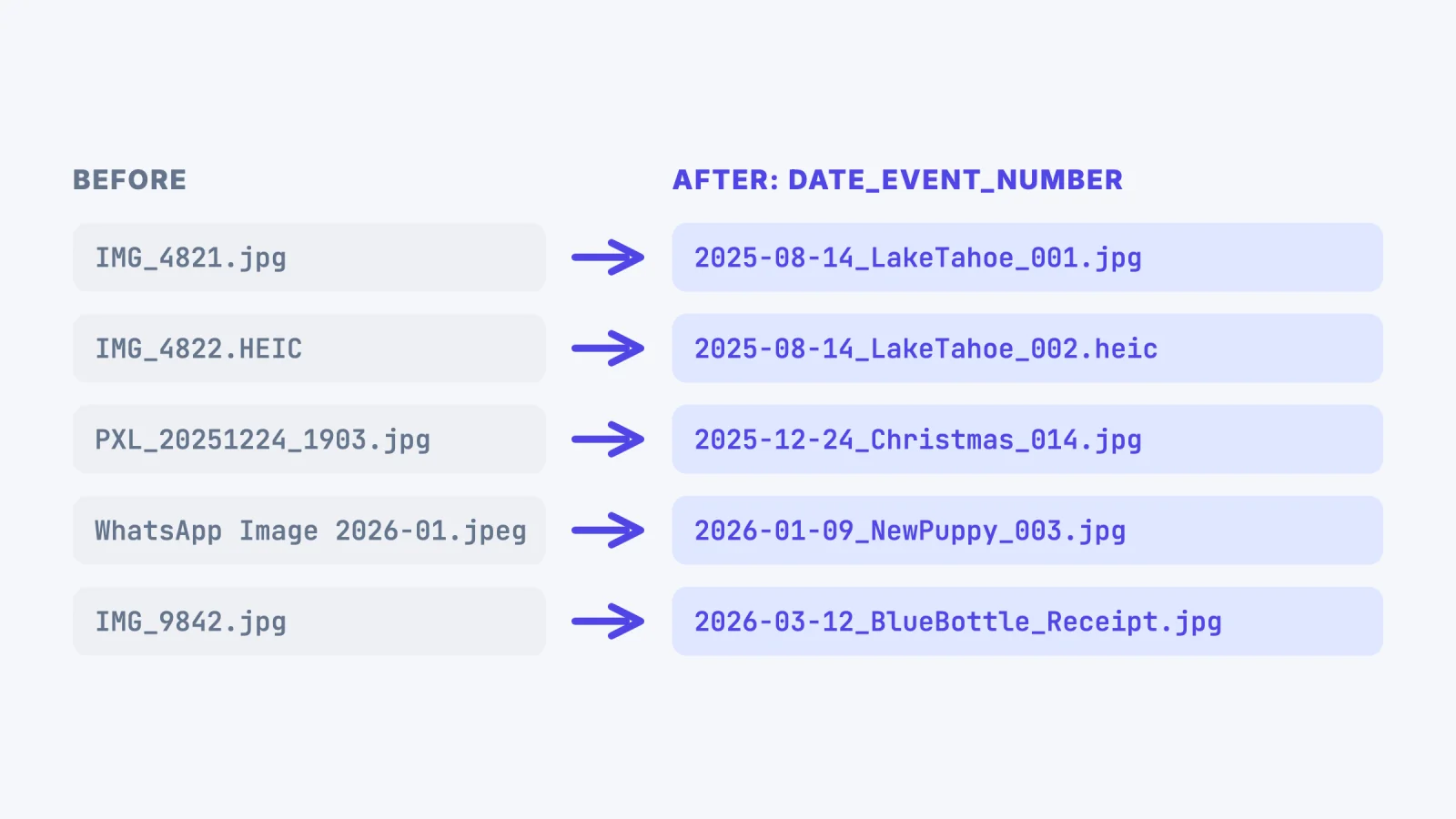
You don't have to rename photos one by one:
- Mac: select the photos in Finder, right-click, choose Rename, then Format and Name and Index.
- Windows: select the photos in File Explorer, press F2, type a name, and press Enter. Windows adds (1), (2), (3) to each one.
- With AI: the bulk image renamer looks at each photo and gives it a name based on what it shows.
For memories, renaming is optional if they already sit in a dated event folder. For utility photos it matters most: 2026-03-12_Acme_Receipt.jpg is findable in a year, IMG_9842.jpg isn't.
How to organize photos on a computer
On Windows
- Keep everything in Pictures, using the year and event folders above. Right-click the Pictures folder and Pin to Quick access.
- The Photos app shows those folders and lets you browse and search them; turn on OneDrive backup for the Pictures folder so the same photos appear on your other devices.
- Use the Date taken column in File Explorer (right-click the column header to add it) to sort a big Unsorted folder quickly.
- When you import from a phone or camera, import into a new dated folder each time instead of one big "Camera" folder.
On Mac
- If you use the Photos app, create one album per event, and use Smart Albums (File, then New Smart Album) for rules like "all photos from 2025 with the keyword Tax".
- Use People & Pets and the search bar to find photos by who or what is in them.
- If you prefer plain files, keep the year and event folders in Finder and add the Photos folder to the Finder sidebar.
Photographers who shoot RAW often use Adobe Lightroom, which adds keywords, star ratings and collections on top of folders. The same year and event structure works well underneath it.
How to organize photos on iPhone
- Albums: in the Photos app, tap the plus button to create an album per event, and keep a few standing albums such as Favorites, Family and Documents.
- Let Photos group for you: People & Pets, Memories and Trips are built in, and on recent iOS versions the Utilities collection pulls out screenshots, receipts and handwritten notes.
- Delete in bulk: open the Duplicates album, then swipe across screenshots you don't need to select many at once.
- Search: the search bar understands things like "beach", "dog" or text in a photo.
- Back up: turn on iCloud Photos in Settings, under your name, then iCloud, then Photos.
For step-by-step help with the screenshot side, see how to organize screenshots on iPhone.
How to organize photos on Android
- Google Photos: turn on backup, then create an album per event. Search understands words like "receipt", "beach" or a friend's name once you've labelled faces.
- Free up space: in Google Photos, tap your profile picture and choose Free up space to remove phone copies of photos that are safely backed up.
- Move screenshots and documents out: Files by Google shows your images by folder, so you can move screenshots and photos of documents into their own folders.
- Samsung Gallery: use albums, and the search bar to find photos by what's in them.
How to organize old printed photos
Prints in shoeboxes follow the same system once they're scanned:
- Sort the prints first, roughly by year. Write the year on a sticky note for each pile; perfect dates don't matter.
- Scan. A flatbed scanner at 600 dpi gives files you can reprint. For speed, a phone scanning app such as Google's PhotoScan removes glare and crops each print for you.
- Name and file them in the same year and event folders, for example
1998-07 Family Holiday Cornwall. If you only know the decade, use a folder like1990s Unsorted. - Write down the stories. Ask older relatives who is in each photo and add it to the file name or a short text file in the folder. That information disappears faster than the prints do.
- Keep the originals in a cool, dry place in acid-free boxes, away from attics and basements.
How to share an organized library with family
- iPhone: iCloud Shared Photo Library lets up to six people add to and edit one shared library, so family photos land in one place.
- Google Photos: use shared albums for each event, or partner sharing to share your whole library (or photos of certain people) with one other person.
- Plain folders: share the Photos folder from a cloud drive with family members, and agree on the year and event naming before anyone adds files.
Agree on one rule above all: everyone adds new photos to the current year's event folder or album, never to a new folder of their own.
What about videos?
Treat videos exactly like photos: same year and event folders, same date-first names. Videos fill storage much faster, so delete failed clips and duplicates first, and keep long recordings on an external drive or cloud storage rather than on your phone.
Folders, albums or tags?
Folders give every photo one home and work everywhere, in any app, for decades. Albums are folders inside a photo app: easy to use, but tied to that app. Tags (keywords) let one photo belong to several groups, such as a wedding photo that is also a family photo.
Use folders or albums for the structure, and add tags only for things that cut across events, like Family, Best or Print. If you find yourself creating dozens of tags, simpler folders plus search will serve you better.
Which photo organizer should you use?
| Tool | Good at | Watch out for |
|---|---|---|
| Google Photos | Backup, search, faces, sharing on any device | Storage beyond the free tier costs monthly |
| Apple Photos / iCloud Photos | Smooth on iPhone and Mac, Memories, shared library | Works best if everyone is on Apple devices |
| Adobe Lightroom | RAW files, ratings, keywords for photographers | Paid, and more than most people need |
| Plain folders | Full control, works with anything, lasts decades | You do the sorting and naming yourself |
| Filex AI | Sorting and renaming receipts, documents and screenshots by what's in them | Built for files you search for, not for photo editing |
There is no single best photo organizer for everyone. Pick the one that matches where your photos already live, and keep the year and event structure no matter which you use.
Back up your photos with the 3-2-1 rule
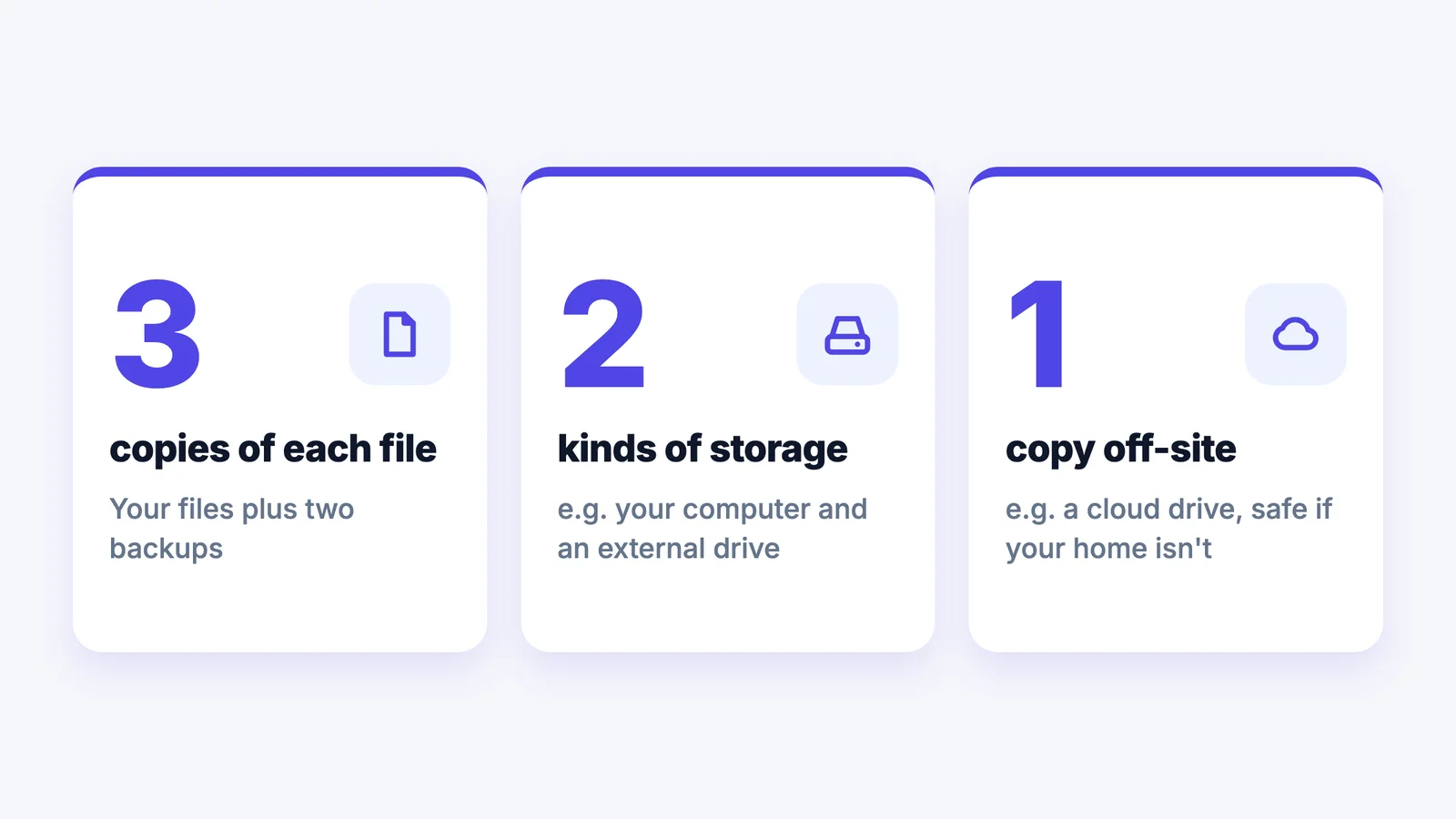
Organizing photos is wasted effort if one broken phone takes them away. Keep 3 copies of each photo, on 2 kinds of storage, with 1 off-site. For example: your phone, an external drive at home, and iCloud Photos or Google Photos.
A sync service on its own isn't quite a backup, because deleting a photo by mistake deletes it everywhere. Once a year, copy your Photos folder to an external drive and check a few photos open.
Keep it organized: a monthly habit
- Once a month (10 minutes): delete the month's duplicates and junk, move receipts and screenshots out, and put the rest into event or month folders.
- After a big event: make the event folder or album the same week, while you still remember who was there.
- Once a year (30 minutes): copy the finished year to your external drive and check your backups.
Find any photo by describing it
Filex AI reads the text in receipts, documents and screenshots, so you can search for the hotel, the amount or the date instead of scrolling.
See the AI photo organizerWhere AI can do the slow part
Steps 3 to 5 are where people give up: deciding what each photo is, which folder it belongs in and what to call it. An AI photo organizer does those three jobs for you. It looks at each photo, works out what it shows, reads any text in it, renames it and files it into a folder.
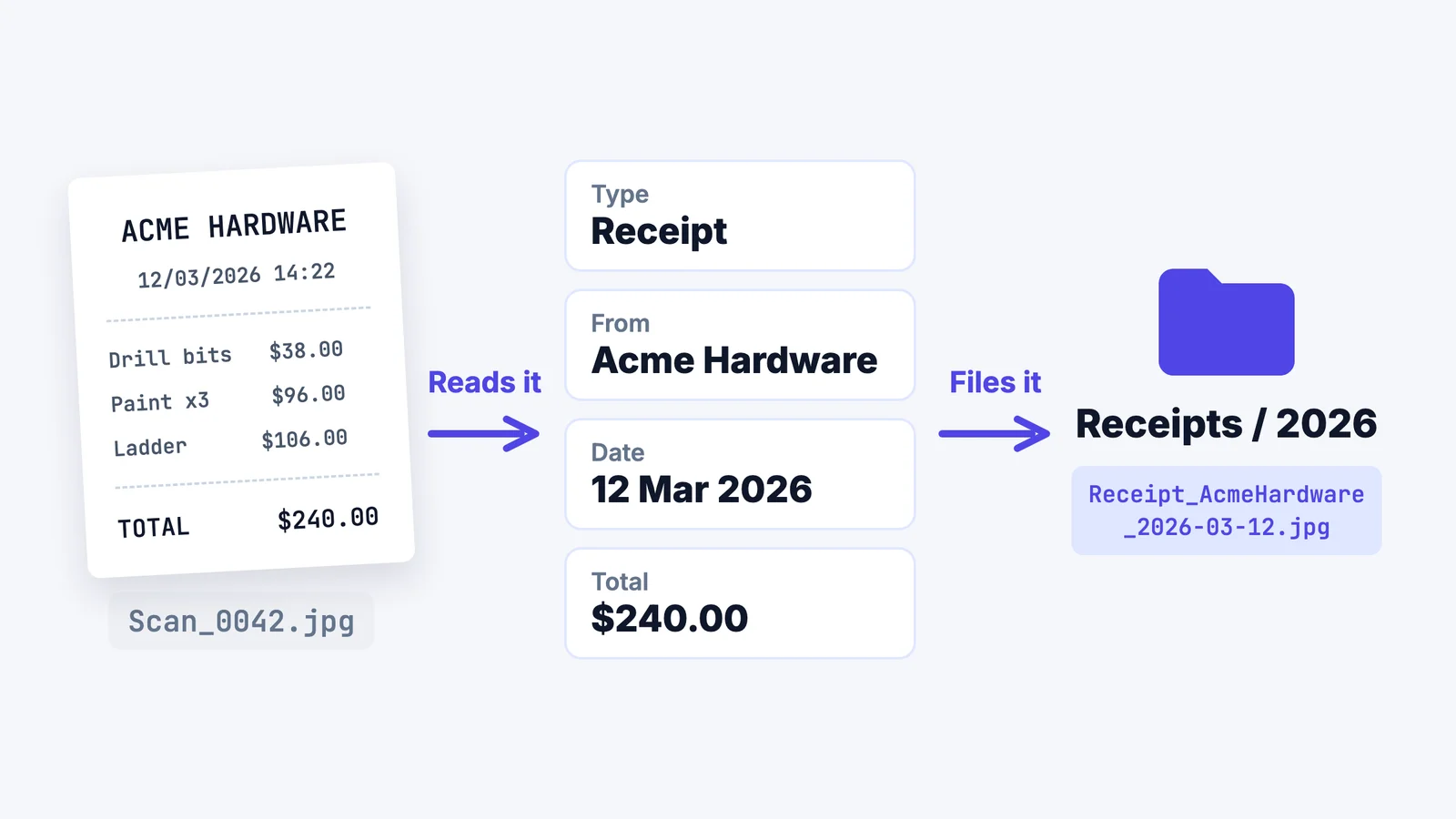
With Filex AI you pick photos, or a whole album, in the iPhone or Android app, or drag them in on the web. Filex sorts them into folders by what they show, gives each one a clear name like Blue-Bottle-Coffee_Receipt_May-14.jpg, and leaves your originals untouched. Later you can find any photo by describing it, such as "the receipt from the hotel in Lisbon", instead of scrolling. On the web you can download the sorted folders as a zip.
It works best on the utility side of your library: receipts, documents, IDs and screenshots, where the text inside the photo is what you're looking for. Your first 10 files are free.
Common mistakes to avoid
- Trying to sort everything at once. Do this year first, then one older year a week.
- Too many albums or folders. If choosing one takes more than a few seconds, merge some.
- Keeping every shot. Ten near-identical photos hide the one good one.
- Mixing receipts with memories. Utility photos make the good photos harder to find, and the receipts harder to find too.
- Two homes for your photos. Half in Google Photos and half on a laptop means every search happens twice.
- No backup. A tidy library on one phone is one accident away from gone.
Organize photos from your phone
Use Filex AI on iPhone and Android to sort photos, screenshots and scans and find them later in seconds.
Download Filex AIStart with this month's photos today
You don't need a free weekend. Pick one home for your photos, delete this month's duplicates, move this month's receipts and screenshots out, and put the rest into one event folder. Next week, do last month. Within a few weeks, finding any photo takes seconds.