
AI File & Document Management

AI Excel Organizer
For Everyone

Automatically organize spreadsheets, reports, and trackers by content, department, and date. Stop wasting time searching through folders β€” let AI do it for you.

No credit card required Β· Free plan included

|
10+
hours saved monthly on manual filing
3 sec
to find any file with AI search
100%
of files organized automatically

Spreadsheet chaos is slowing your team down
β€” manually hunting through Excel files is a thing of the past.

From budget trackers to quarterly reports, Filex AI reads inside every spreadsheet so you can find the right file in seconds.

2.5 hours

wasted daily searching & organizing files

File Chaos

60%

of work context is lost in scattered files

Lost Context

73%

of teams struggle with inconsistent file names

Naming Confusion

How to Tame Your Spreadsheet Library

Three simple steps to a perfectly indexed and searchable Excel collection.

01

Upload Your Files

Drop files, folders, or entire workspaces β€” PDFs, images, docs, anything messy.

02

Tell AI What You Want

Use plain English like β€œorganize by project” or β€œgroup by client & date.”

03

AI Organizes Instantly

Files are renamed, categorized, and structured automatically β€” no rules needed.

04

Find Anything Fast

Search using natural language and access any file in seconds.

AI organization for Excel Files

Tailored structure and intelligent filing designed specifically for excel files workflows.

✨

Stop losing spreadsheets in folder chaos

Automatically organize budgets, reports, trackers, and spreadsheets with intelligent content-aware categorization.

Custom Organization Logic

1

Sort by department, then report type, then date

  • Department and report-type categorization
  • Automatic date and version extraction
  • Smart deduplication for copied spreadsheets

Natural Language Search

"Find the Q3 sales report"

FILE

unorganized_file.pdf

Unorganized

Finance/Sales/Q3_2025_Sales_Revenue_Report.xlsx

Organized by Filex AI

The Smart Excel File Toolkit

Everything you need to organize, search, and manage your spreadsheet library.

Key Feature
πŸ“Š

Built Specifically for Excel Files

Automatically reads spreadsheet metadata and content to organize files by department, report type, and date period.

Key Feature
🧠

Content-Aware AI Organization

Advanced AI reads sheet names, headers, and metadata β€” not just filenames β€” to understand what each spreadsheet is and file it correctly.

🏷️

Intelligent File Renaming

Say goodbye to "Sheet1.xlsx" and "budget_final_v2.xlsx". AI generates descriptive names based on actual spreadsheet content.

πŸ”

Powerful Smart Search

Find any spreadsheet instantly. Search by department, report type, period, or any concept mentioned in your files.

πŸ”’

Privacy-First Design

Your financial data, payroll sheets, and business reports are encrypted and completely private. Only you can access your files.

πŸ“±

Access Anywhere, Work Everywhere

Sync your organized spreadsheets across all devices. Review reports on your phone, edit on your laptop, access everything in the cloud.

Auto Organization

Drag in reports. Filex AI files them by department.

Drop in budgets, sales reports, and trackers, tell Filex AI how you want them grouped, and let AI understand, rename, and organize them instantly. It reads sheet content β€” not just filenames β€” and follows your custom rule every time.

Understands file content, not just filenames
Learns your patterns over time
Smart renaming
Nested folder structures
Custom organization rules in plain English
Works with scanned documents
2.5 hrs
saved per day
50+
file formats
iOS & Android
mobile apps
Learn More

Custom organization rule

β€œGroup files by department, then by report type and period”
Finance & BudgetSales ReportsHR & Payroll
  • πŸ“„report_final_FINAL.xlsxSales Reports/Q3_Sales_Revenue_Regional_Breakdown.xlsx
  • πŸ“„budget_v3_updated.xlsxFinance & Budget/Annual_Budget_FY2026_Planning.xlsx
  • πŸ“„sales_draft_v2.xlsxSales Reports/Monthly_Pipeline_Report_May2026.xlsx
Filex AI document scanner scanning and organizing a document on mobile

Document Scanner

Scan it. Filex AI files it under the right report category.

Drop in a spreadsheet or scan a printed report. Filex AI reads it, names it clearly, and files it under the right department β€” no manual sorting through files named "Sheet1.xlsx".

  1. 01

    Tap scan or drop in the file

    Open Filex AI, tap scan for a printed report, or drop in an Excel file directly. Then tap organize. That is the whole job.

  2. 02

    AI reads the spreadsheet

    Content analysis reads the sheet names, headers, and data to extract what the report actually is: the department, the period, the report type.

  3. 03

    It files itself

    The file lands in the department folder that fits it β€” or Filex AI creates one. It gets a clear name built from its content, not "download (2).xlsx".

  4. 04

    Find it by asking

    Weeks later, just type "find Q3 sales report". The file is already indexed, named, and linked.

Browser Extension

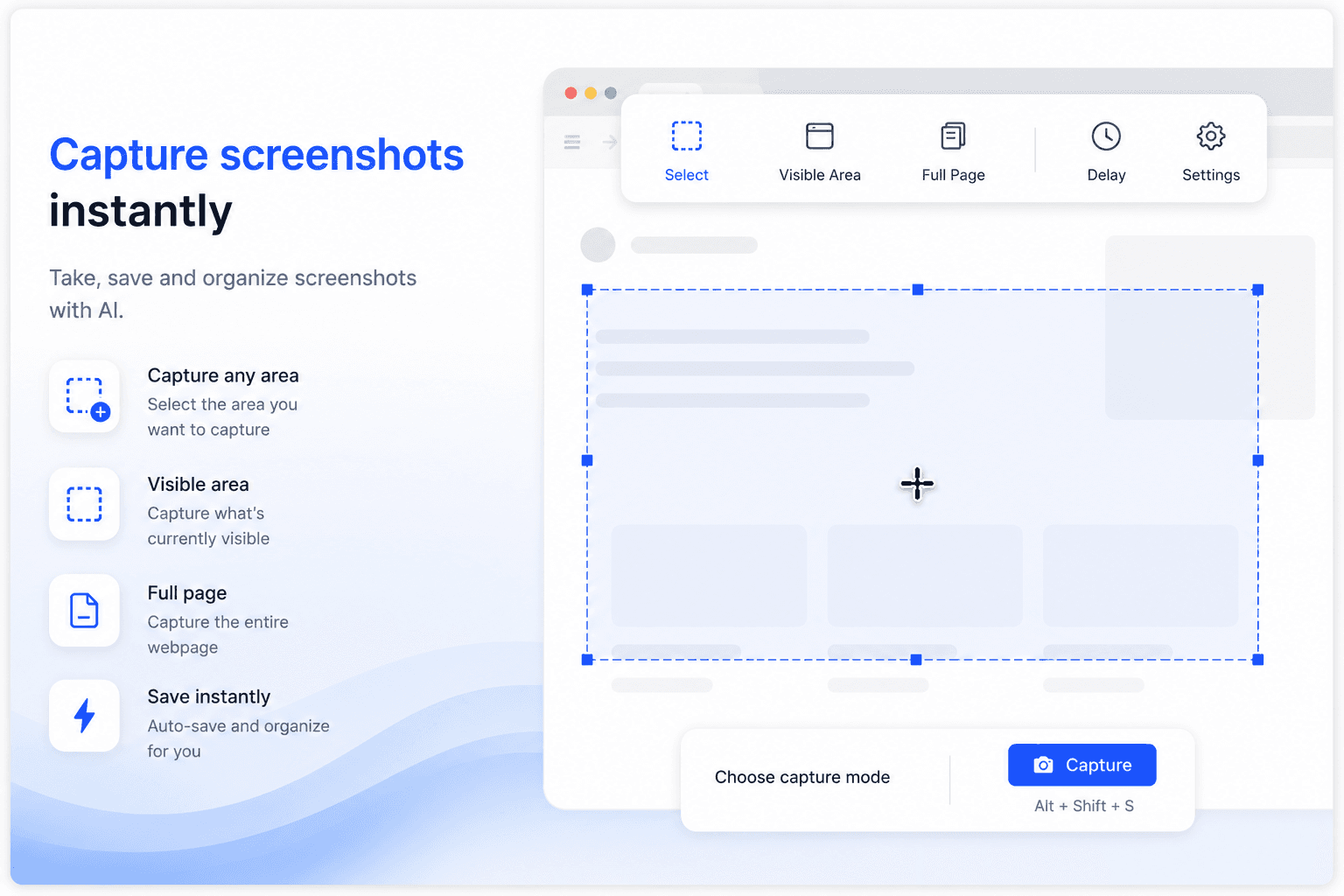
Capture dashboards and exported reports β€” right inside Chrome

Take, save, and organize screenshots of dashboards, exported reports, and downloaded spreadsheets with AI. Every screenshot you capture and every file you download gets named, sorted by department, and synced automatically β€” without leaving the tab.

  • Capture any area, the visible area, or a full dashboard page
  • Screenshots auto-saved, named, and filed by report type
  • Downloads sorted into the right department folder automatically
  • Full-content search inside sheet names, headers, and data
  • Instant sync to Filex AI on iPhone, Android, and web
Filex AI browser extension capturing and organizing a screenshot

Smart Grouping & Lenses

Group your spreadsheets, your way

Describe a group once β€” Filex AI keeps it live and up to date automatically.

β€œGroup all Finance department reports”

β€œGroup sales reports by quarter”

β€œCreate a Lens for this year's budget trackers”

β€œGroup HR and payroll files by month”

β€œGroup all inventory reports this quarter”

β€œCreate a Lens for duplicate spreadsheets to clean up”

β€œGroup reports by report type”

β€œCreate a Lens for the latest version of each tracker”

Available Everywhere

AI Excel Organizer β€” iPhone & Android

iPhone & iPad App

Scan documents, organize files, and search by content on the go. Available on iOS and iPadOS.

Get the app

Android App

Scan documents, organize files, and search by content on the go. Available on Android.

Get the app

Web App

Full-featured workspace in your browser. Organize, search, share, and manage files from anywhere.

Get started

Browser Extension

AI file management directly inside Google Drive, OneDrive, and Dropbox. No tab switching.

Add to Chrome

Simple, transparent pricing

Start free. Upgrade only when you need more power.

Free

Start organizing smarter with AI-powered file management.

$0
  • 20 files one time
  • AI content analysis & auto-sorting
  • Smart file renaming
  • Basic tagging
  • Cloud sync across devices
  • Export Organized Folders
Most Popular

Premium

Ideal for professionals who organise files, notes, and projects every day.

$2.99/month
  • 500 files organization per month
  • Advanced subject-based folders
  • OCR for images & scans
  • Handwritten notes analysis
  • Mobile app access
  • Share-to-organize from anywhere
  • Priority support
  • Export Organized Folders
Best Value

Premium (Yearly)

Save more with annual billing

$29/year
  • 6000 files organization per year
  • Advanced subject-based folders
  • OCR for images & scans
  • Handwritten notes analysis
  • Mobile app access
  • Share-to-organize from anywhere
  • Priority support
  • Export Organized Folders

What People Are Saying

Join thousands who've revolutionized their file management

πŸ”΄Reddit
Finally stopped wasting time hunting for the right version of a report. My Excel files are now sorted by quarter and department automatically.
F
via Reddit
🐦X
βœ“ Verified
Organized 3 years of spreadsheets in minutes. Finding any quarterly report is instant now. This is the productivity tool I didn't know I needed.
D
via X
πŸ”΄Reddit
No more "budget_final_FINAL_v3.xlsx". Everything has a proper name and is filed correctly. My team can actually find shared files now.
T
via Reddit
🐦X
βœ“ Verified
AI reads the sheet names and headers to figure out what the file is. It's smarter than any folder structure I've tried to set up myself.
S
via X
πŸ”΄Reddit
Pulled up an expense report from 18 months ago in 5 seconds. Used to take me 10 minutes of digging. Incredible.
A
via Reddit
πŸ”΄Reddit
Game changer for remote teams who share a lot of Excel files. Everyone can find what they need without asking someone else.
R
via Reddit

Complete guide

The Complete Guide to AI File Management for Excel Files

Why a Shared Drive Full of Spreadsheets Becomes Unmanageable

A single team tracking one budget can usually keep its spreadsheets straight through a simple shared folder. That stops working once multiple departments generate reports on their own schedules, all landing in the same drive with names like "report_final_FINAL.xlsx" and "copy_of_tracker.xlsx" that describe nothing about the department, period, or report type they contain.

The real cost shows up when someone needs the current version of a report and can't tell which of several similarly-named files is actually up to date. A shared drive built on the assumption that everyone will name and file their spreadsheets consistently rarely survives contact with multiple contributors working under their own deadlines.

AI-based organization removes the dependency on naming discipline. Because Filex AI reads sheet names, headers, and the actual data inside each spreadsheet, the fiftieth generic "Sheet1.xlsx" across a busy reporting period gets categorized with the same accuracy as the first, regardless of what it happened to be named when it was saved.

How AI Identifies the Department and Report Type From Content Alone

A file named "data_export_new.xlsx" could be a sales report, a payroll summary, or an inventory tracker, and there's no way to tell from the name alone. Filex AI reads the sheet names, column headers, and a sample of the actual data, terms like "revenue," "headcount," or "SKU", to determine what kind of report the file contains and which department it likely belongs to.

This matters because the same generic file types, budgets, trackers, summaries, recur constantly across every department in an organization. The only reliable signal distinguishing a Finance budget from an HR payroll summary is the actual column structure and data inside, not the filename. Content-based categorization reads that structure the same way an analyst glancing at the header row would.

Because this does not depend on filenames, it works identically well on a system-generated export with an auto-incrementing name and a manually saved file named "Untitled.xlsx". The signal was always in the data itself, never in how the file happened to be named.

Handling Recurring Reports, Duplicates, and Years of Archived Spreadsheets

Recurring reporting cycles, monthly budgets, quarterly sales summaries, generate a steady accumulation of spreadsheets that overlap heavily with each other, since this month's tracker usually resembles last month's closely. Sorting that volume by hand, and figuring out which version is actually current, consumes real time on a recurring basis that most teams don't have to spare.

Filex AI processes a batch of spreadsheets the same way it processes a single file: read the sheet content, categorize by department and report type, and file it accordingly in a single pass regardless of volume. This includes recognizing likely duplicate or near-duplicate trackers, helping surface which file is the most current version without requiring anyone to open several candidates side by side.

For a team with years of accumulated spreadsheets, this turns an ever-growing pile of ambiguous filenames into an organized, dated archive, where a report from eighteen months ago is exactly as easy to retrieve as one from this morning.

  • Upload a batch of recurring reports in one pass, no pre-sorting needed
  • Sheet names, headers, and data samples are read to identify department and report type
  • Near-duplicate spreadsheets are flagged to help identify the current version
  • Older reports are processed with the same accuracy as new uploads

Searching Across Every Department Without Asking a Colleague

Once spreadsheets are scattered across department folders with inconsistent naming, finding a specific report later usually means either remembering exactly where it was saved or asking a colleague who might remember. That back-and-forth adds friction every time a report needs to be revisited, particularly on remote or distributed teams where a quick desk-side question isn't an option.

Filex AI's natural language search lets anyone describe what they need instead, "the Q3 sales report" or "May payroll summary", and returns the matching file because the AI understands the actual content of each spreadsheet rather than requiring an exact filename match. This works the same regardless of who originally saved the file or how they happened to name it.

For a team working across multiple departments and reporting cycles, this turns a fragmented archive into something closer to a single searchable spreadsheet library, reducing the number of "does anyone have the file for..." messages a team sends in a given week.

Frequently asked questions

Everything you need to know about using Filex AI

Is Filex AI free for Excel file organization?

Yes! You get free credits to organize up to 20 files per month. Premium plans are available for unlimited spreadsheet organization.

Does it work with .xls files as well as .xlsx?

Absolutely. Filex AI supports both .xlsx and .xls formats, as well as .ods and Google Sheets exports. The AI reads metadata and sheet names to categorize each file.

Can it tell apart different versions of the same report?

Yes. The AI detects version indicators in filenames and metadata, flags duplicates, and helps you keep the most relevant version while archiving the rest.

Is my financial data private and secure?

Your privacy is our priority. All files are encrypted end-to-end β€” only you can access your spreadsheets. We never share or sell your data.

Does it rename my original files?

No, your original files remain completely untouched. Filex AI creates an organized view with better names, but your originals stay exactly as they are.

Can I access my organized spreadsheets on mobile?

Yes! Files sync automatically across all your devices β€” phone, tablet, laptop, or any web browser.

How accurate is the AI at categorizing Excel files?

Our AI achieves 95%+ accuracy in categorizing spreadsheets. It reads sheet names, headers, and metadata. You can always manually adjust if needed.

Can I delete my data permanently?

Absolutely. Delete individual files, folders, or your entire account at any time. All data is immediately and permanently erased.

Ready to Organize Your Excel Files?

Join thousands of analysts, finance teams, and managers who have transformed their messy spreadsheet folders into an organized, searchable library.